Answer
Best first use
Yes, use AuraTuner to draft one Amazon A+ module image from one product photo. Do not use the first output as a publish-ready file until Seller Central accepts the selected module.
Amazon A+ Content Workflow
Turn one product photo into a single A+ module image draft. The Studio preset opens a header-style starter, not a full A+ page builder or Seller Central publisher.
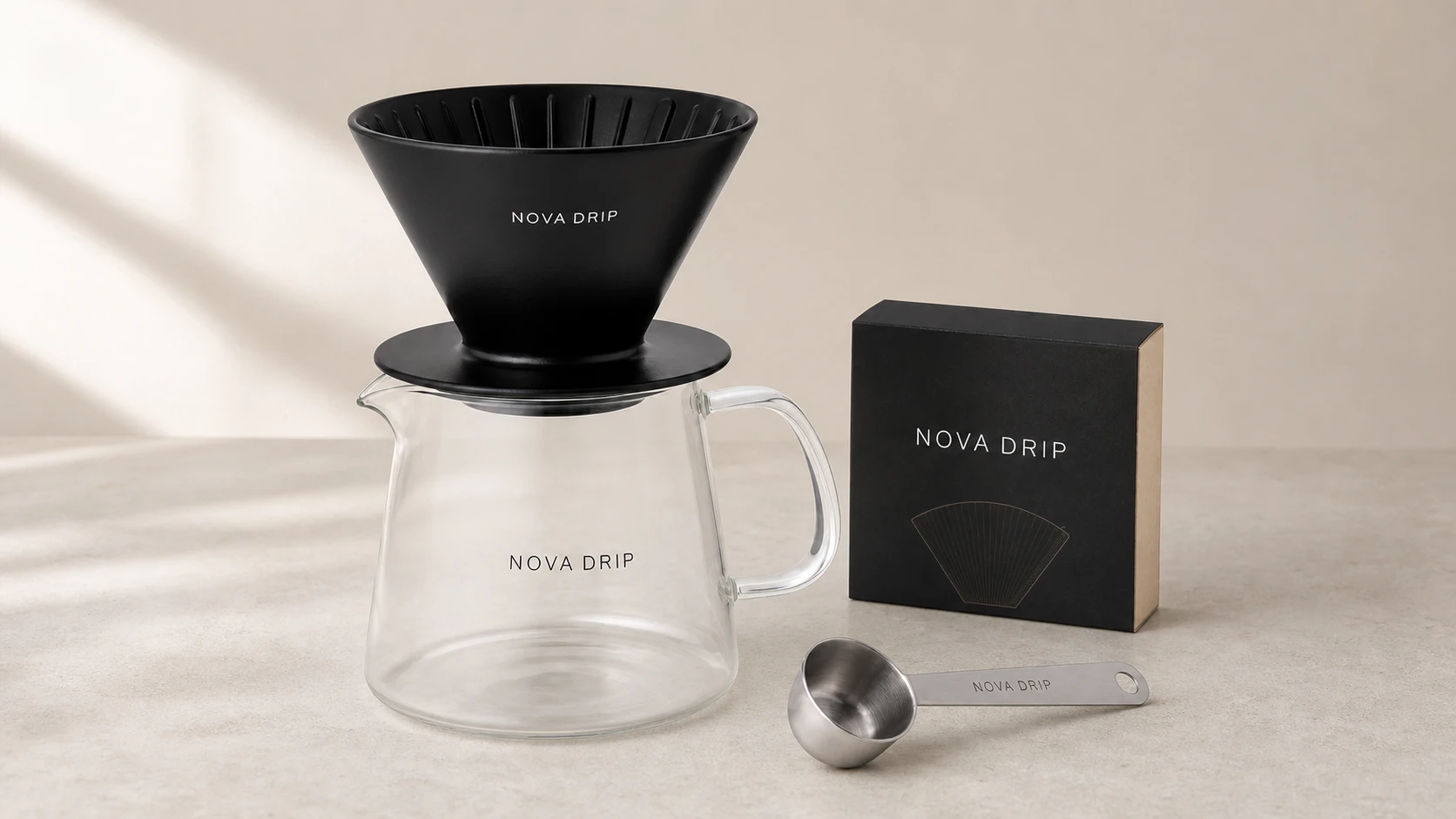
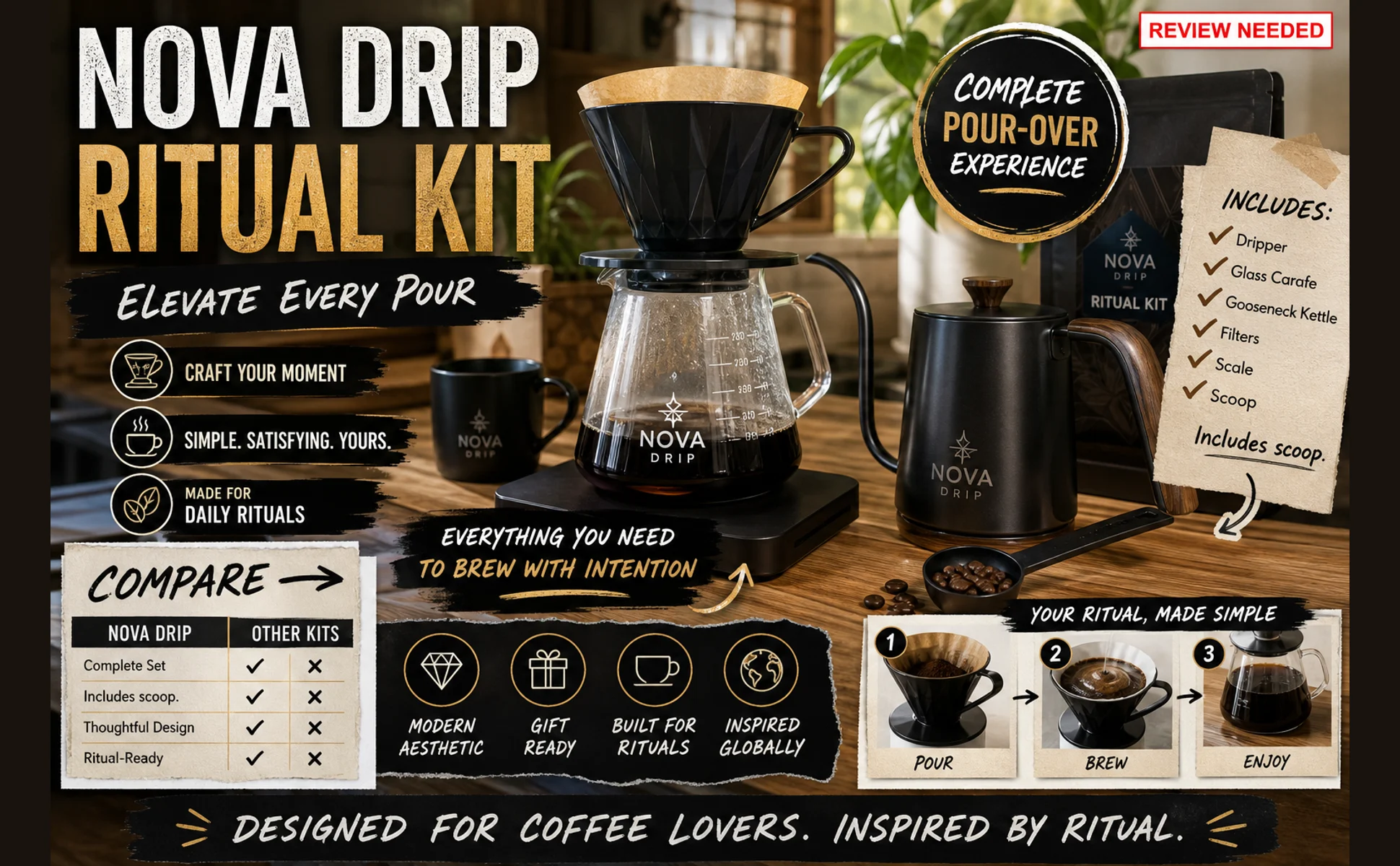
Generated test with fictional sample callouts. Use it to inspect product fidelity, copy density, and crop risk before recreating the exact Seller Central module size with seller-approved claims.
Short Answer
Yes, AuraTuner can draft one Amazon A+ module image from a product photo, but Seller Central still controls module setup, eligibility, review, and publishing. The strongest first run is narrow: one product source, one module slot, one seller-approved copy set, and one review pass.
Answer
Yes, use AuraTuner to draft one Amazon A+ module image from one product photo. Do not use the first output as a publish-ready file until Seller Central accepts the selected module.
Layout
Choose the target slot before styling. A header banner, feature grid, comparison chart, and brand story need different crops, aspect ratios, and text density.
Proofread
Use short seller-approved copy. Long claims, tiny feature text, and dense comparison cells are the first things to reject on mobile.
Limit
The Studio preset opens a wide 16:9 image-to-image draft, not an exact Seller Central export. Verify the live module size, eligibility, claims, and upload behavior inside Seller Central.
Workflow
A+ Content is not one generic banner. The module slot controls how much text, detail, lifestyle context, and comparison structure the image can carry.
Use one clean packshot or approved product photo. The module should preserve shape, included items, material, color, logo area, and packaging.
Ask for one module image at a time: header banner, feature grid, comparison visual, lifestyle section, or brand story image.
Check text, claims, product fidelity, mobile crop risk, and whether the output belongs in A+ Content rather than the main listing image set. Resize or rebuild for the exact module field after the concept passes review.
Visual Cases
These generated samples show the practical decisions: preserve the product, keep module copy readable, and reject attractive creatives that carry too much claim or slot risk.
Generated source
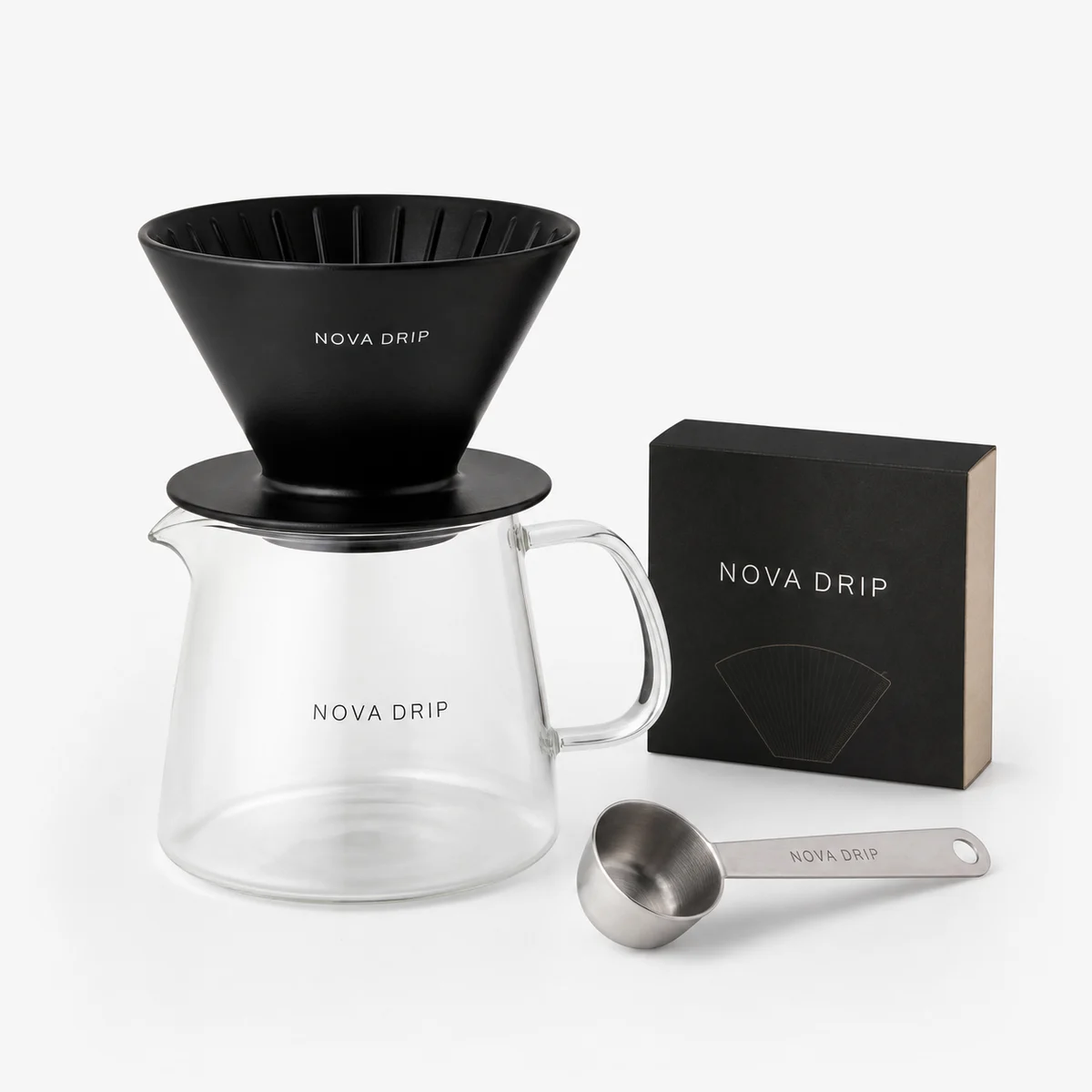
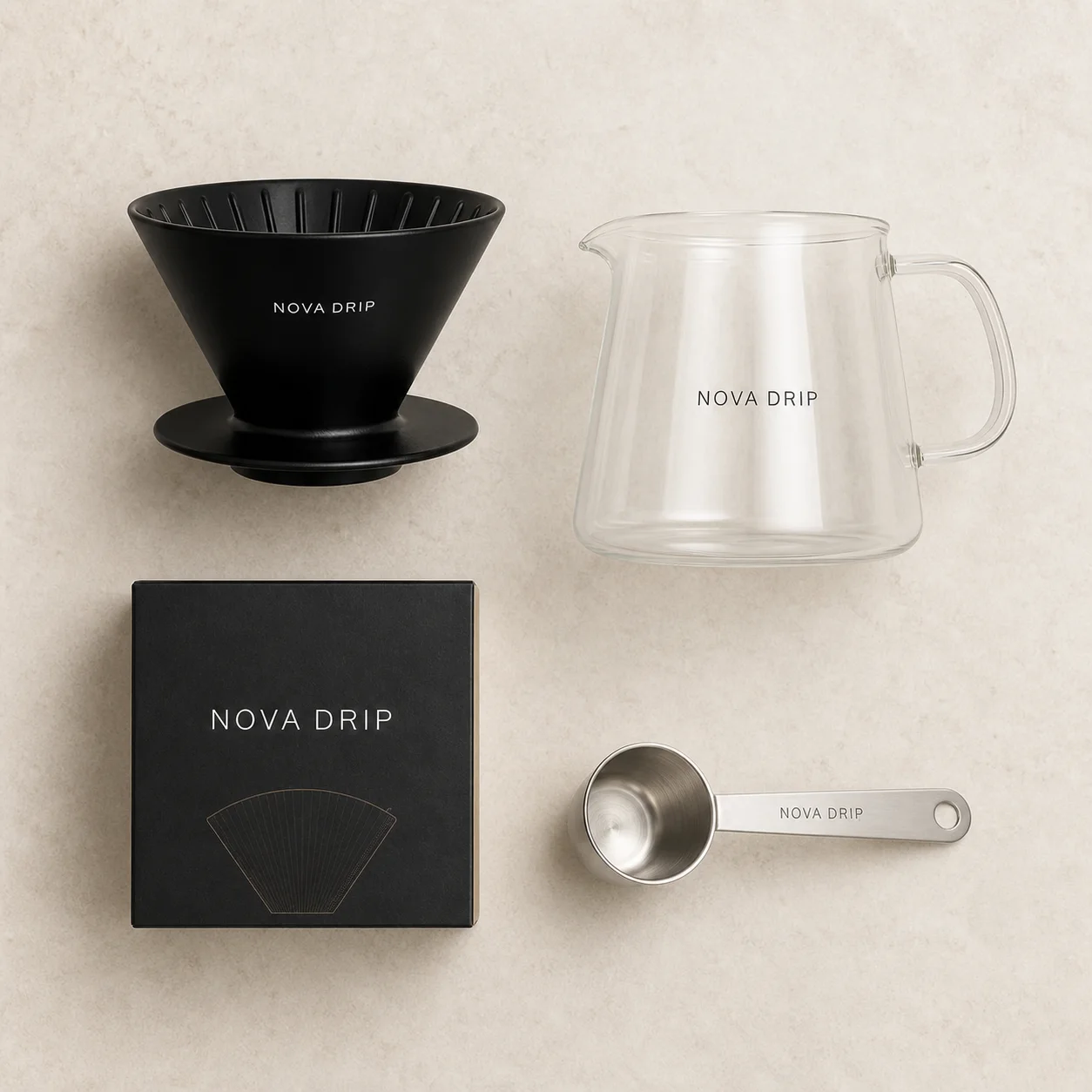
The source is intentionally plain. It gives the module draft a product truth to preserve before adding lifestyle context or callouts.
Generated test
This is a useful A+ header draft because product, headline, and three short callouts fit one wide module instead of a crowded full kit.
Generated test
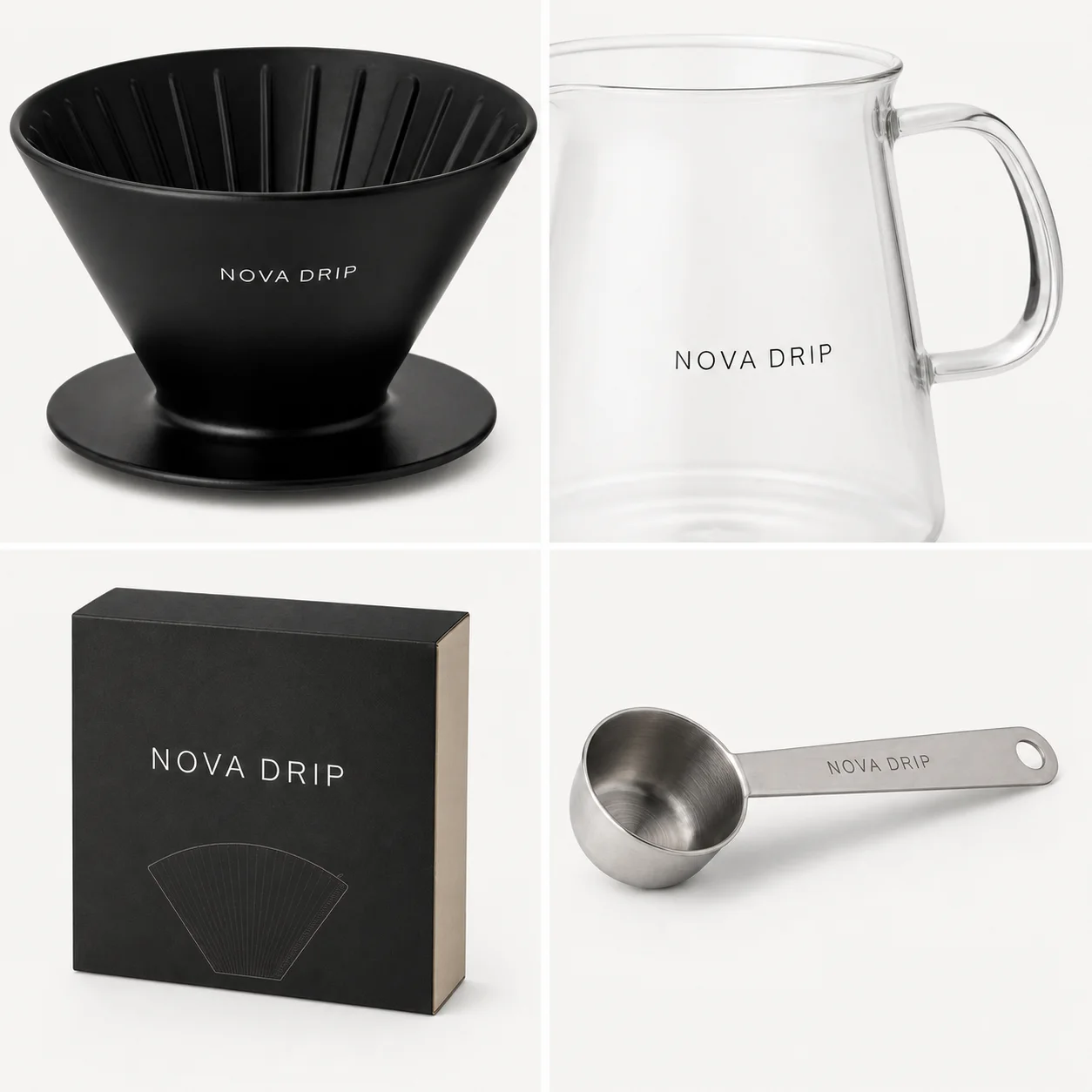
Feature modules work better when each tile explains one concrete detail. Keep headings short enough to proofread at gallery size.
Marketplace review required
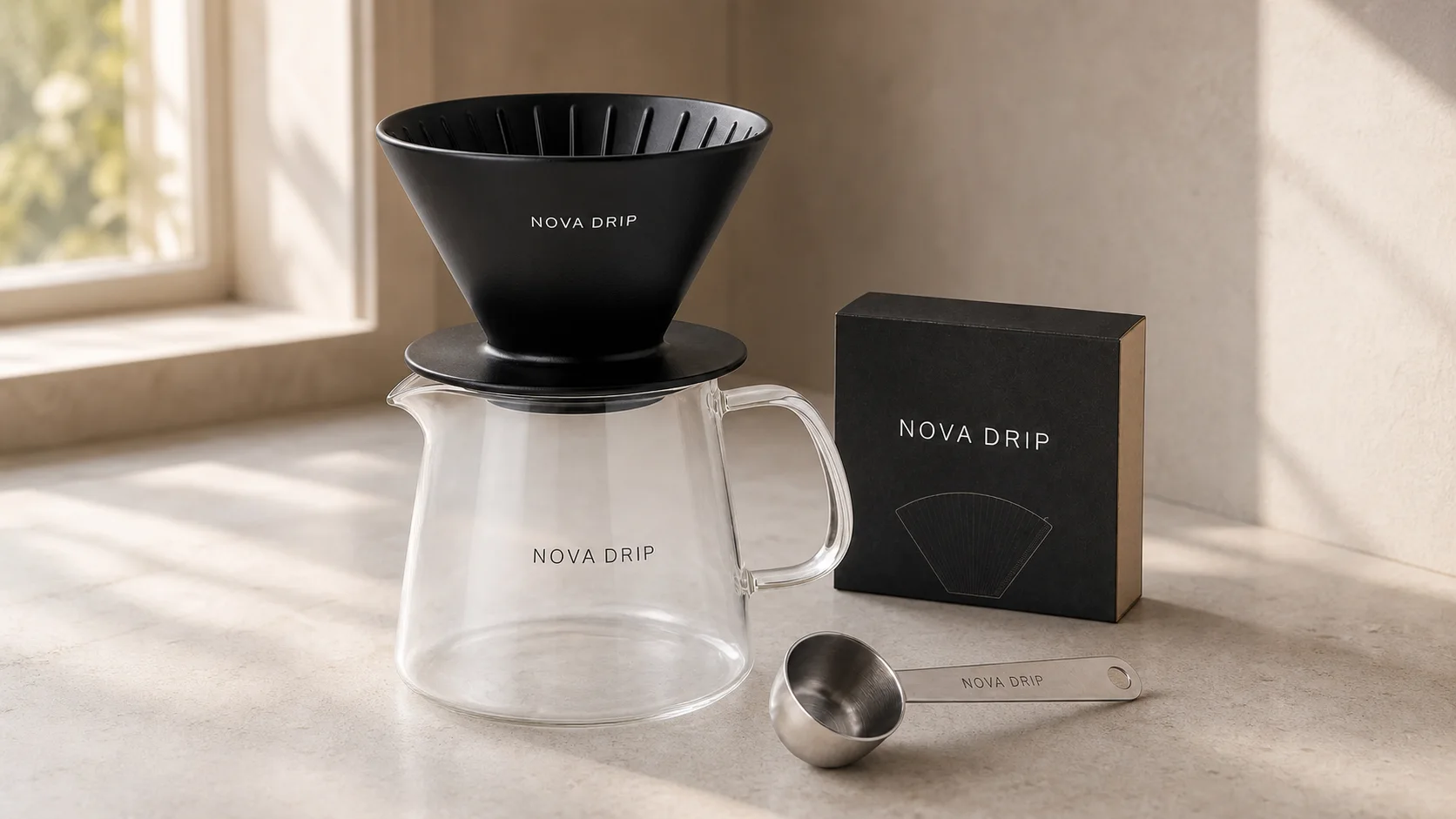
A polished creative can still be wrong for upload. Crowded claims, extra props, badges, and competitor-style comparison language need Seller Central review.
Module Map
Pick the module job before generating. Competitor tools often promise a complete Amazon-ready kit, but a narrow prompt gives you an easier review than a single overloaded image trying to explain the whole product.
Hero module
Use for one hero product image, one headline, and a few short benefits. Plan wide, then check the current Seller Central crop.
Feature module
Use for product details such as material, handle, texture, bundle contents, or use steps. Each tile should answer one shopper question.
Decision module
Use only seller-approved facts. Keep cells short, avoid unsupported competitor claims, and proof every label before upload.
Brand module
Use for brand education after the product facts are stable. Avoid turning brand story into a dense claims poster.
Context module
Use when context helps scale, routine, or use case. Keep the actual product visible and avoid implying accessories are included.
Not A+ reuse
Do not reuse A+ graphics as main images. Text, badges, props, and lifestyle context belong outside the strict MAIN slot.
Review Checks
Amazon's public A+ materials describe A+ as enhanced images, text placements, videos, carousels, and comparison charts that are created, applied to ASINs, and submitted for review in Seller Central. Reject anything that adds unsupported claims, promotional language, contact details, or unreadable mobile text before making variations.
Awards, certifications, performance numbers, discounts, warranty terms, and medical claims should come from substantiated seller material, not the model.
A module that looks balanced on desktop can become unreadable on mobile. Keep the product and headline away from the edges.
Do not add sale prices, discounts, buy-now language, guarantee language, QR codes, contact details, or off-Amazon directions to the module image.
Public size guides are planning aids. Seller Central module fields, category rules, and upload validation are the final source of truth.
Prompt Patterns
Replace the example copy with real seller-approved benefits. Keep prompts short enough that the model knows the module slot and the product constraints.
Transform this product photo into one Amazon A+ Content Standard Image Header draft. Preserve the exact product shape, material, packaging, logo area, color, and included items. Use one headline: "Clean pour-over ritual". Add three short callouts from the seller brief. Keep text large and readable, leave safe margins, and do not add Amazon branding, ratings, discounts, certifications, or unsupported claims.
Create a four-tile A+ feature module from this product photo. Use one closeup per tile: product texture, handle or edge detail, included accessory, and packaging detail. Add short headings only: "Even flow", "Clear glass", "Measured scoop", "Filter ready". Preserve product design and do not add claims that were not supplied.
Create one A+ comparison-chart image for this product. Use only these seller-approved facts: compact countertop footprint, glass carafe, stainless scoop included, paper filters included. Keep the product accurate, make each cell readable, and avoid competitor names, superiority claims, sale copy, review stars, or certification badges.
Studio handoff
The preset starts in image-to-image mode with a product-fidelity prompt, a 16:9 wide draft frame, and a sample product source. Replace the example copy with approved benefits, generate one module concept, then inspect text, crop, and claims before resizing or rebuilding for the exact Seller Central module field.
Use when the first decision is main image, secondary gallery image, or listing infographic.
Use when the product photo needs a cleaner studio or lifestyle background before A+ layout work.
Open the broader image editor when the task is not Amazon-specific.
Use this workflow to draft and inspect module images. Verify final content, eligibility, and upload behavior in Seller Central before publishing.
Yes. AI can draft A+ module images such as header banners, feature grids, lifestyle sections, and comparison visuals. Treat the output as a draft: proofread text, verify claims, resize for the selected module, and check the module in Seller Central before publishing.
No. Main images are the strictest listing slot. A+ modules can use education, lifestyle context, feature callouts, and comparison layouts, but the final module still needs marketplace, brand, and category review.
Start with a clean product photo where the shape, packaging, label area, color, and included items are already correct. If the source image is messy, fix the source before asking for a module layout.
No. AuraTuner helps draft and inspect module images. Upload, eligibility, brand registry, module selection, and final approval still happen in Amazon Seller Central.