Amazon Listing Workflow

Amazon listing image generator for product visuals

Turn one product photo into a first Amazon visual draft: separate main-image cleanup from secondary infographics, comparison charts, lifestyle images, and promo assets before you scale variants.

Image-to-image preset for a single product photo
Guidance for main image vs secondary infographic slots
Prompt patterns for benefit callouts and comparison charts

Short Answer

Use AI for the right Amazon image slot, not every slot at once

The safest first test is a single-SKU secondary image draft with strict product-fidelity guardrails. Treat the MAIN image as a separate, stricter review path.

Start here

Best first use

Use this workflow to turn one clean product photo into one Amazon secondary image draft. Unlike ASIN-to-full-kit tools, this preset tests one controlled draft before variants.

Slot fit

Main image boundary

A main-image candidate should stay product-only on pure white. Any callouts, icons, comparison blocks, badges, props, or lifestyle context belong outside the MAIN slot.

Handoff

What AuraTuner helps with

The preset gives you a product-fidelity prompt, example source image, benefit-callout pattern, and review checklist so the first run tests a narrow listing job.

Limit

What still needs review

AuraTuner does not certify Amazon approval. Check Seller Central rules, category requirements, image dimensions, background color, claims, and final upload behavior before publishing.

Workflow

Start with one SKU and one asset type

Competitors can promise ASIN-to-gallery automation and editable full kits. This first AuraTuner preset is narrower: one product photo, one draft, one inspection pass.

1Upload one product photo

Use the approved packshot or clearest product angle as the source of truth. The first run should protect shape, packaging, label area, material, and color.

2Choose the listing asset

Ask for a main-image cleanup, benefit infographic, comparison chart, lifestyle secondary image, or promo image. Do not mix every slot in one prompt.

3Inspect before variants

Check product fidelity, text readability, claim accuracy, and whether the result belongs in a main image or secondary listing slot.

Visual Cases

Source control and three listing decisions

The useful question is not whether the image looks polished. It is whether the image fits the right listing slot without changing the product or inventing claims.

Source

Source kit: inspect before editing

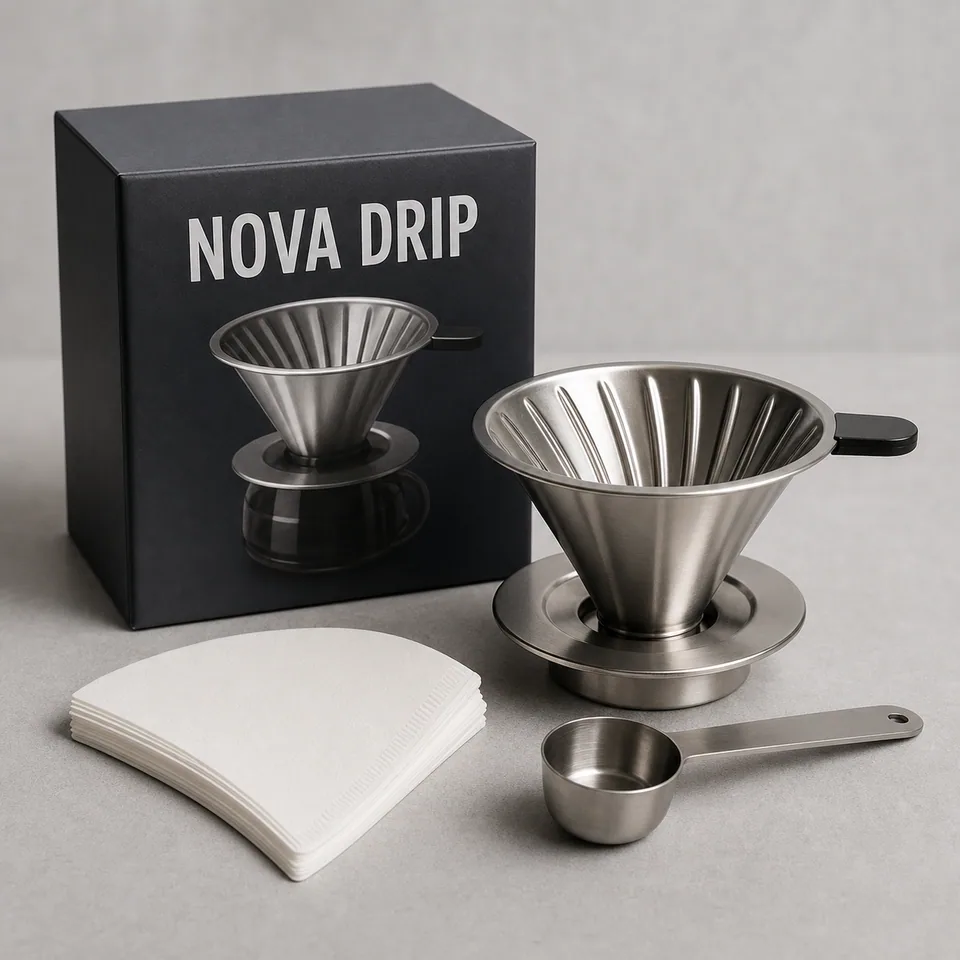
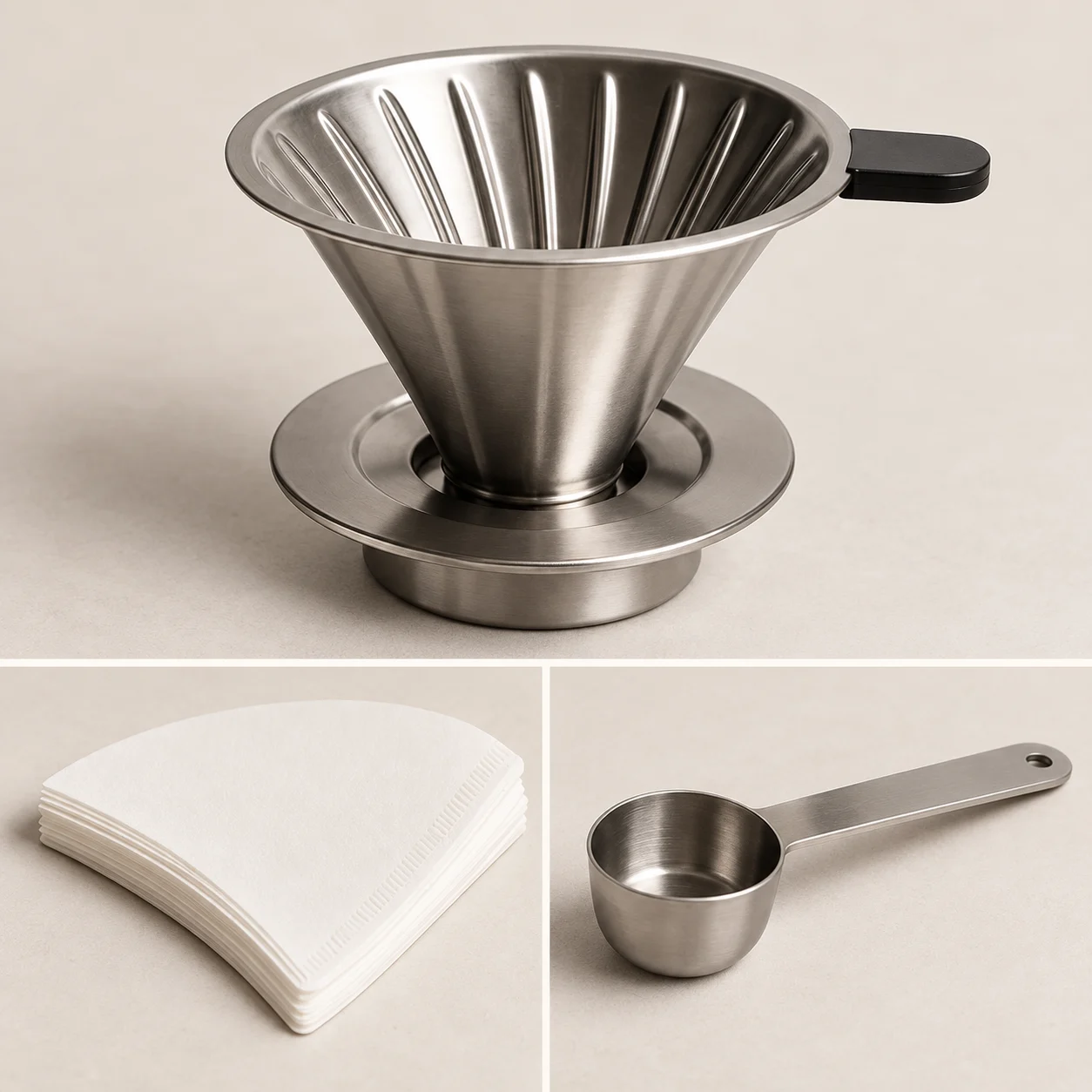
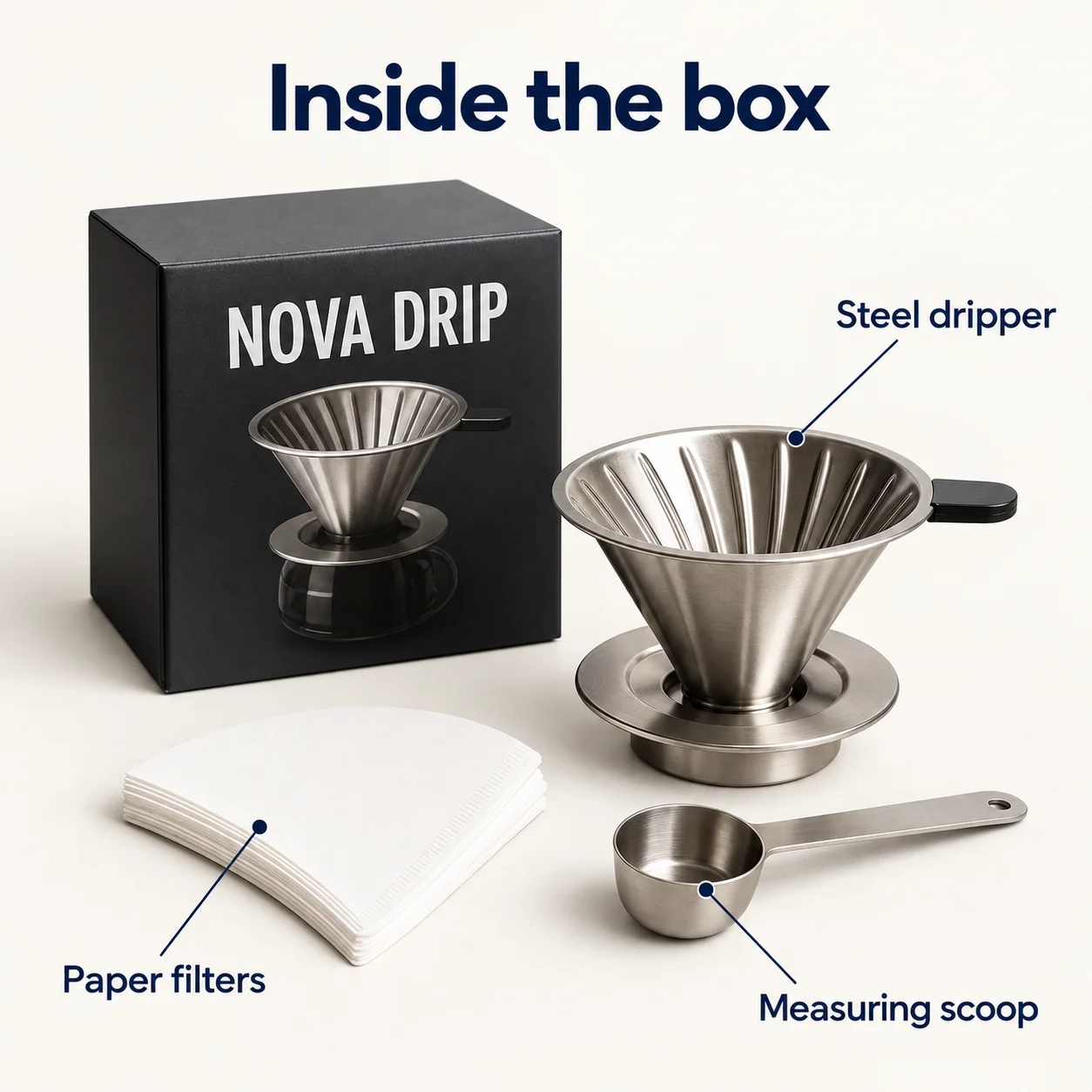
The source already shows the sold items, label areas, metal finish, and bundle shape that later drafts must preserve.

  • Input: product kit photo
  • Intent: preserve product truth
  • Decision: use as control
Label areasBundle shapeIncluded items

Slot split

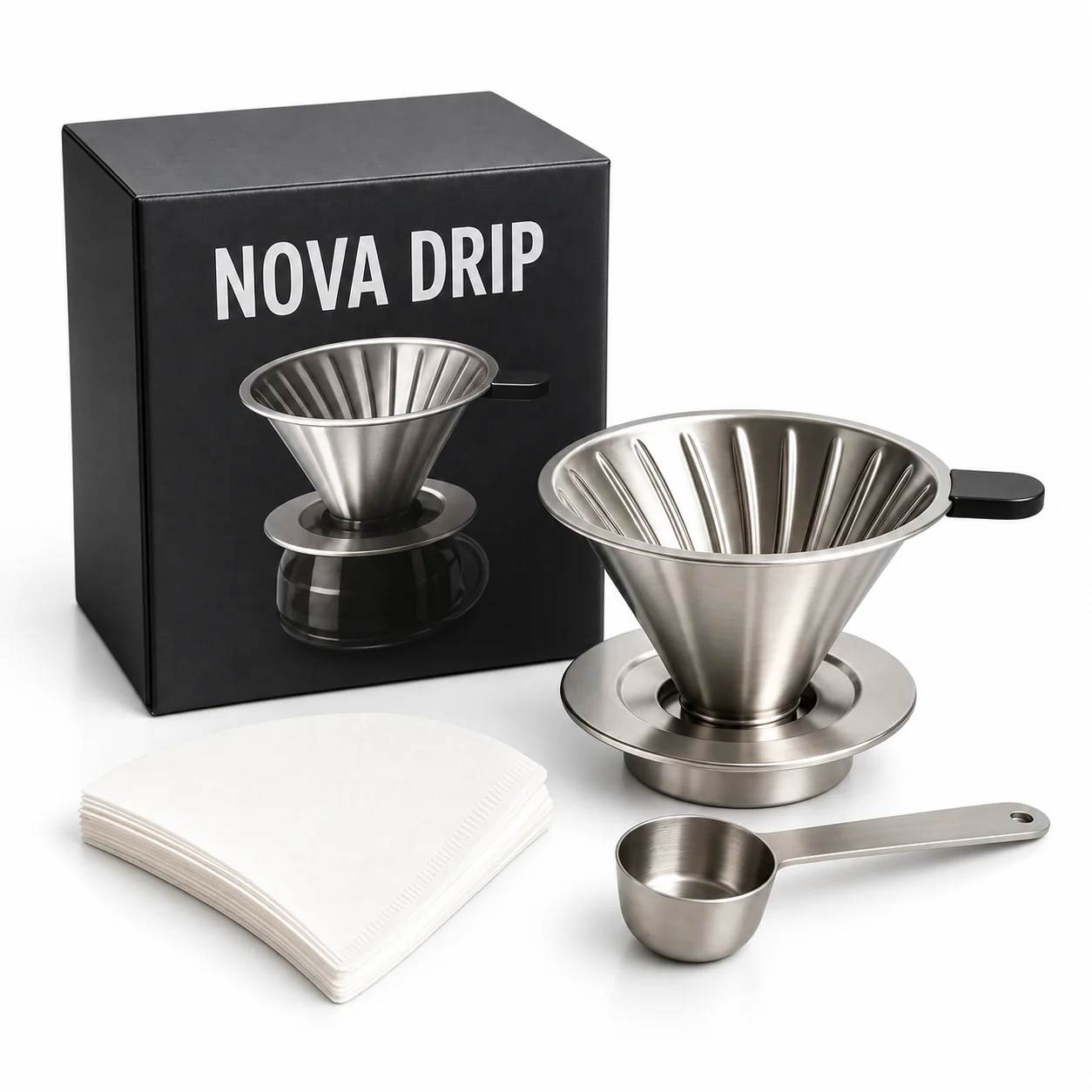
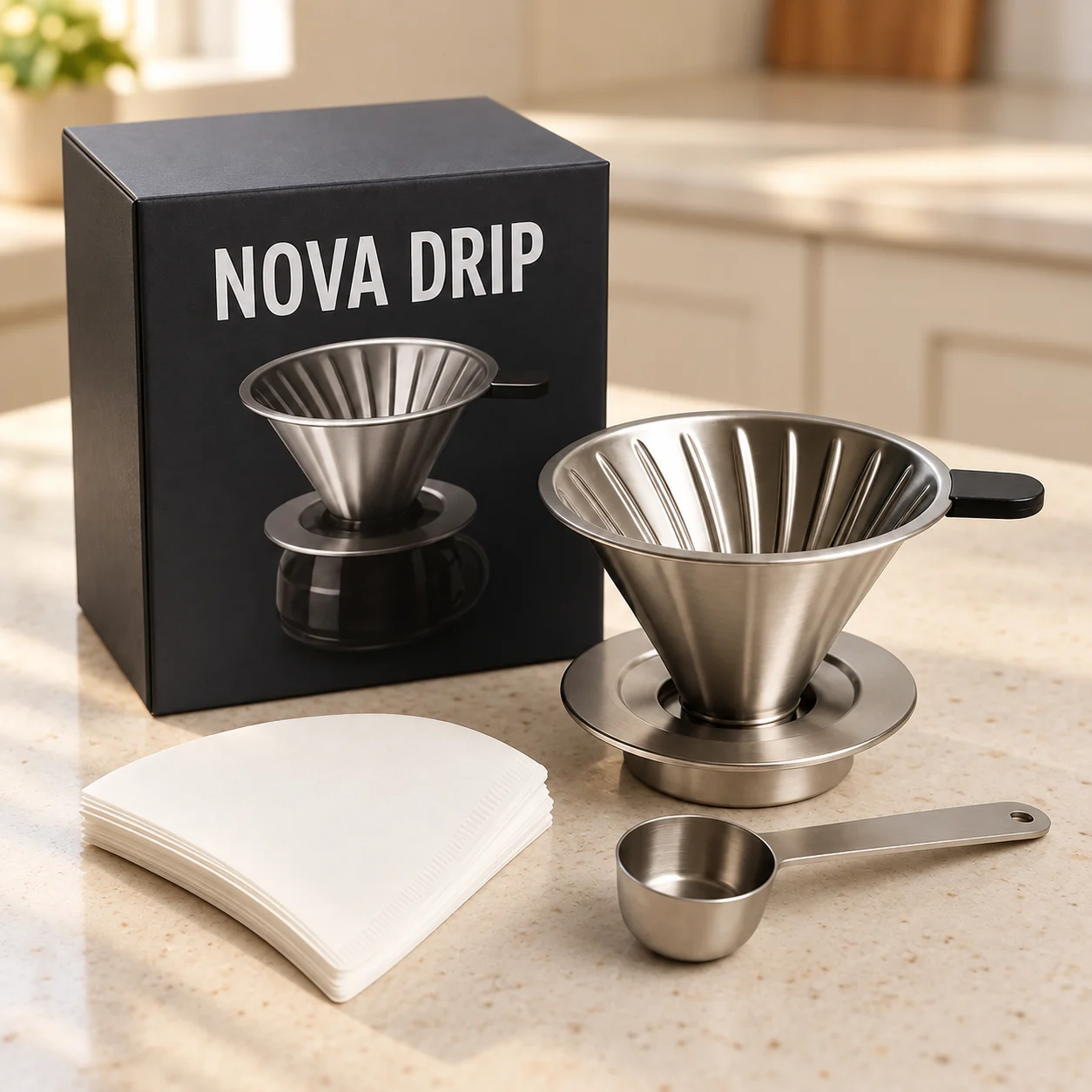
Coffee kit: separate the slot before styling

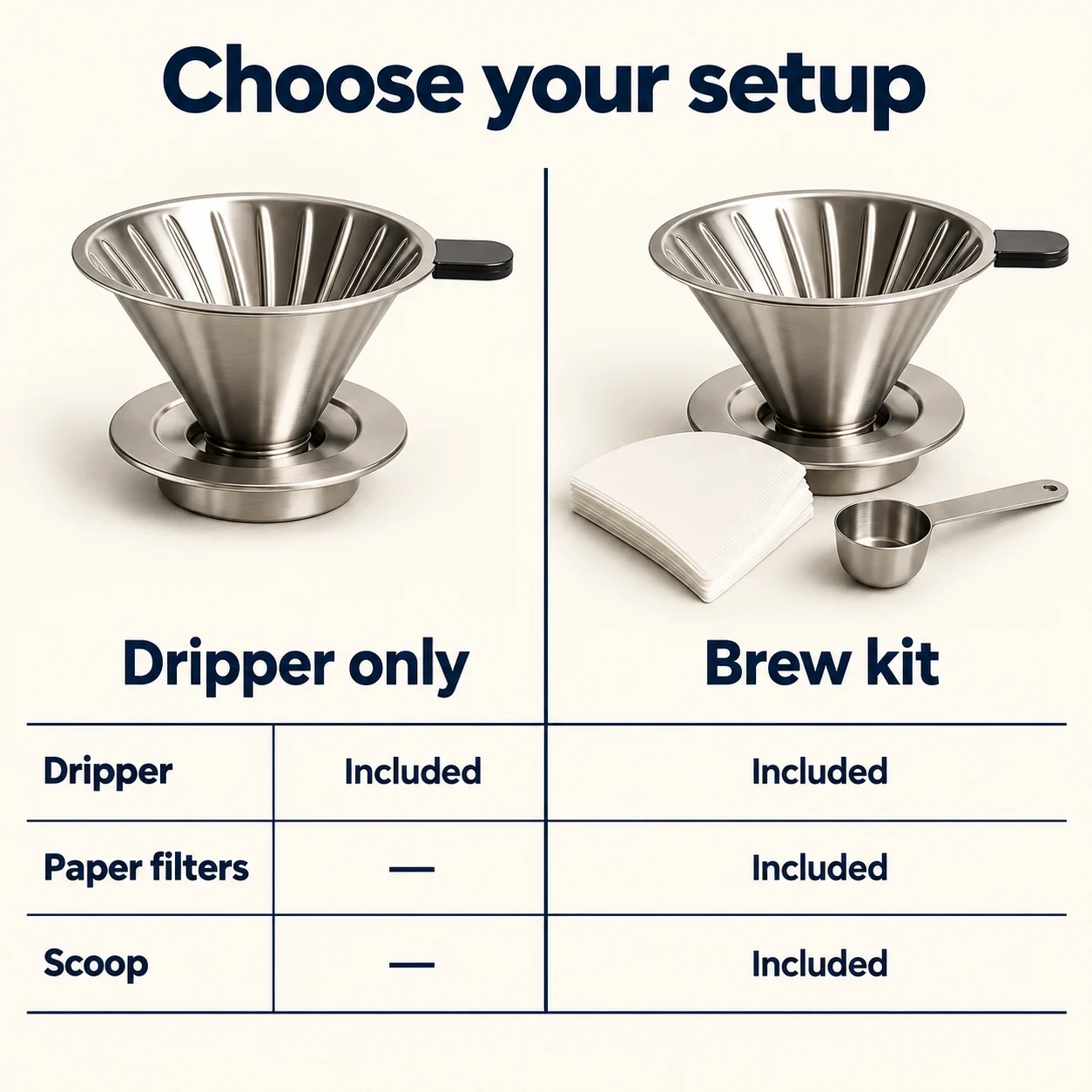
Useful for deciding whether the draft belongs in the strict MAIN image slot or the secondary gallery.

  • Input: coffee kit source
  • Intent: compare main vs secondary
  • Decision: split the slots
Main vs secondaryProduct still visibleNot upload-ready

Secondary only

Serum bottle: source to secondary infographic

The infographic is stronger for selling benefits, but its callouts and visual treatment keep it out of the MAIN image slot.

  • Input: serum packshot
  • Intent: benefit infographic
  • Decision: secondary only
Shape preservedCallouts readableNo unsupported claims

Reject as main

Storage boxes: good creative, bad main image

Props, text, overlays, and promotional claims can make a useful secondary image unsuitable for the MAIN image.

  • Input: storage container set
  • Intent: gallery creative
  • Decision: reject as MAIN
Props presentText overlayClaim risk

Review Rules

Anchor the workflow to the strict main-image rules first

Amazon's MAIN image slot is stricter than the secondary gallery. Start with pure white background, product fill, product-only framing, and no text or overlays.

Rule split

Main images are not infographic images

If the image contains callout text, badges, comparison graphics, arrows, props, or lifestyle background, treat it as a secondary image or A+ candidate.

Fidelity

Keep the actual product as the source of truth

Do not let the model redesign packaging, change the logo area, invent included accessories, alter quantity, or hide important product edges.

Claims

Proof every claim

Dimensions, discounts, awards, certifications, safety claims, and medical or performance claims should come from the seller brief, not the model.

Review

Use category rules before upload

Amazon listing rules can vary by category. Use this workflow to draft and inspect, then verify the final upload path against the current Seller Central guidance.

Technical

Export checks still matter

Before upload, confirm the final file is large enough for zoom, in an accepted format, and not compressed so heavily that text, edges, or label details become hard to inspect.

Output Map

Generate one asset type at a time

A full listing kit is built from separate passes. Decide the asset type first, then inspect the result before making variants.

Strict slot

Main image check

Use for white-background product framing and obvious rule checks. Keep text, badges, overlays, props, and lifestyle context out of this slot.

Secondary image

Benefit infographic

Use short seller-provided claims around the product. Keep callouts readable and avoid invented certifications, discounts, or performance numbers.

Decision aid

Comparison chart

Use when shoppers need to compare size, use case, bundle contents, or model variants. Keep each cell short enough to proofread.

Context

Lifestyle image

Use when context helps the buyer understand scale, room fit, routine, or use case. Keep the product as the visual anchor.

Campaign

Promo image

Use for off-Amazon ads, social, or storefront creative. Do not reuse promotional badges or sale copy in the Amazon main image.

Later

A+ content module

Use controlled sections for feature education, brand story, or comparison blocks after the main listing image set is stable.

First Test

What to check before generating variants

A useful first run is not the most decorated image. It checks whether the product, copy, and listing slot can survive the workflow.

Product shape

The silhouette, caps, buttons, label panel, packaging seams, and bundled items should still match the source product.

Text readability

Callouts should remain short and readable at listing-gallery size. Zoom in before generating more variants.

Slot fit

Decide whether the output is a main image candidate, secondary infographic, lifestyle image, or ad creative before polishing style.

Claim control

Remove unsupported specs, awards, medical claims, exaggerated performance language, and discounts you did not provide.

Prompt Patterns

Use short seller claims and strong guardrails

These prompts are intentionally narrow. Replace the example claims with real seller-approved copy before opening the preset.

Benefit infographic

Transform this product photo into a square Amazon secondary image. Preserve the exact product shape, packaging, label area, materials, and color. Add three short readable callouts: "Fast setup", "Space-saving design", "Easy daily use". Keep the product as the hero, use clean ecommerce typography, and do not invent certifications, discounts, dimensions, or awards.

Comparison chart

Create a clean Amazon listing comparison image from this product photo. Keep the product accurate and centered. Add a simple three-column comparison block for "Best for", "Key benefit", and "Included". Use only these seller-provided facts: compact size, rechargeable battery, travel case included. Make every label readable.

Main-image cleanup

Create a clean main-image candidate from this product photo. Keep only the actual product being sold, preserve product shape and packaging, place it on a pure white background, and remove graphic overlays, props, badges, watermarks, borders, and lifestyle context. Do not add text.

Studio handoff

Open Studio with the Amazon listing preset already filled in

The preset starts in image-to-image mode with a product-fidelity prompt. Upload your product photo, replace the example claims with approved listing copy, and run one controlled draft before changing asset type or style.

Related Pages

Amazon Listing Image FAQ

Use this workflow for drafting and inspecting listing visuals. Verify final assets against the latest marketplace and category rules before upload.

Can I use AI-generated images as Amazon main images?

Treat the main image as the strictest slot. It should show the actual product clearly on a pure white background, without text overlays, badges, watermarks, extra props, or lifestyle context. Use AuraTuner drafts as a starting point and verify the final image against the current Amazon category rules before upload.

Where should product infographics and callouts go?

Use benefit callouts, comparison charts, badges, and lifestyle scenes for secondary listing images, A+ style modules, or ad creative. Do not use those graphic layouts as the main image.

What should I upload first?

Start with one clean product photo where the product shape, packaging, label area, and color are already close to the listing. Avoid tiny labels, cropped packaging, messy props, and images where the product is not the main subject.

Does AuraTuner automatically approve Amazon compliance?

No. AuraTuner helps draft and review listing visuals, but it is not an Amazon approval tool. Use the workflow to catch obvious main-image risks, then verify the final asset in Seller Central and against the current category style guide.