
Clean studio background
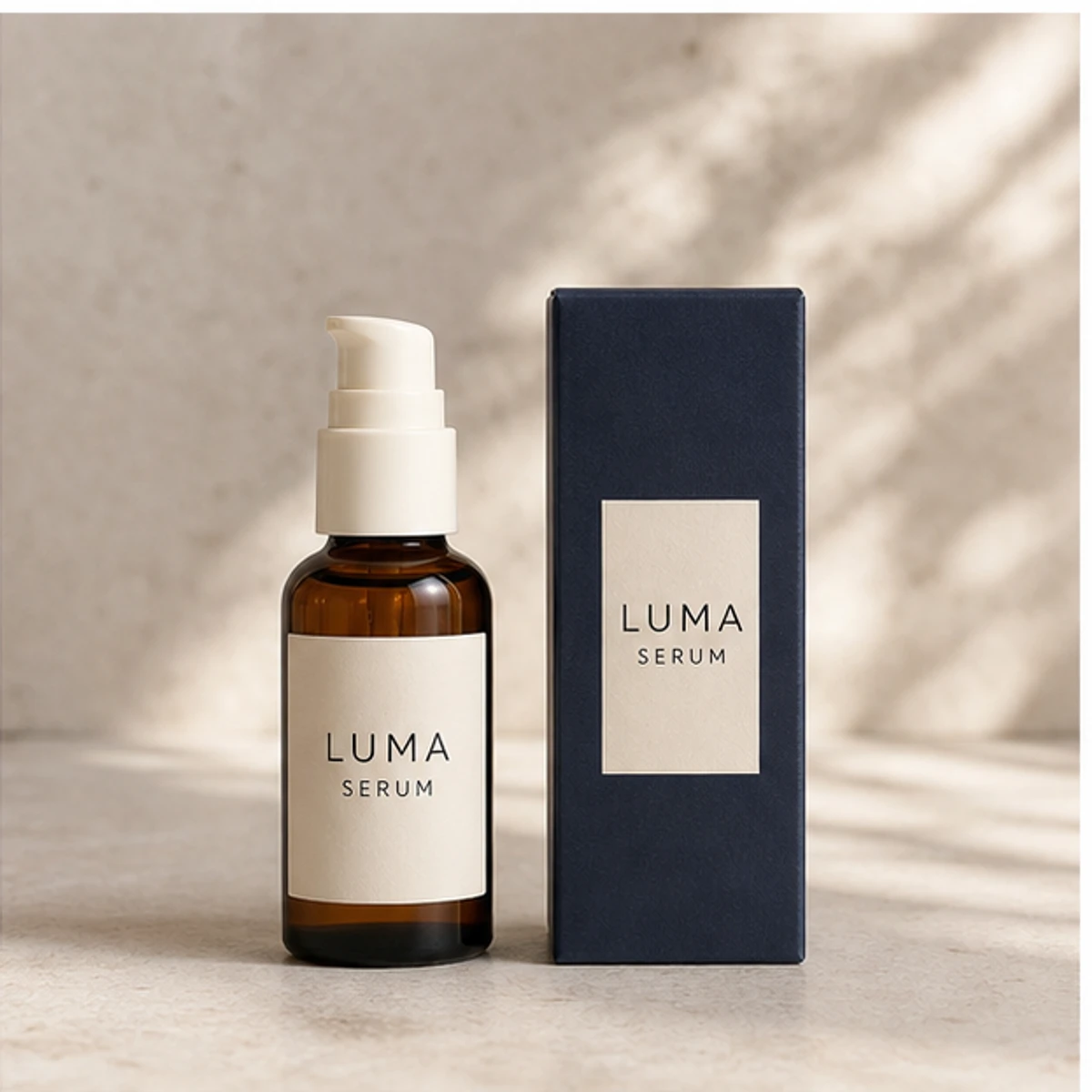 Generated test
Generated source
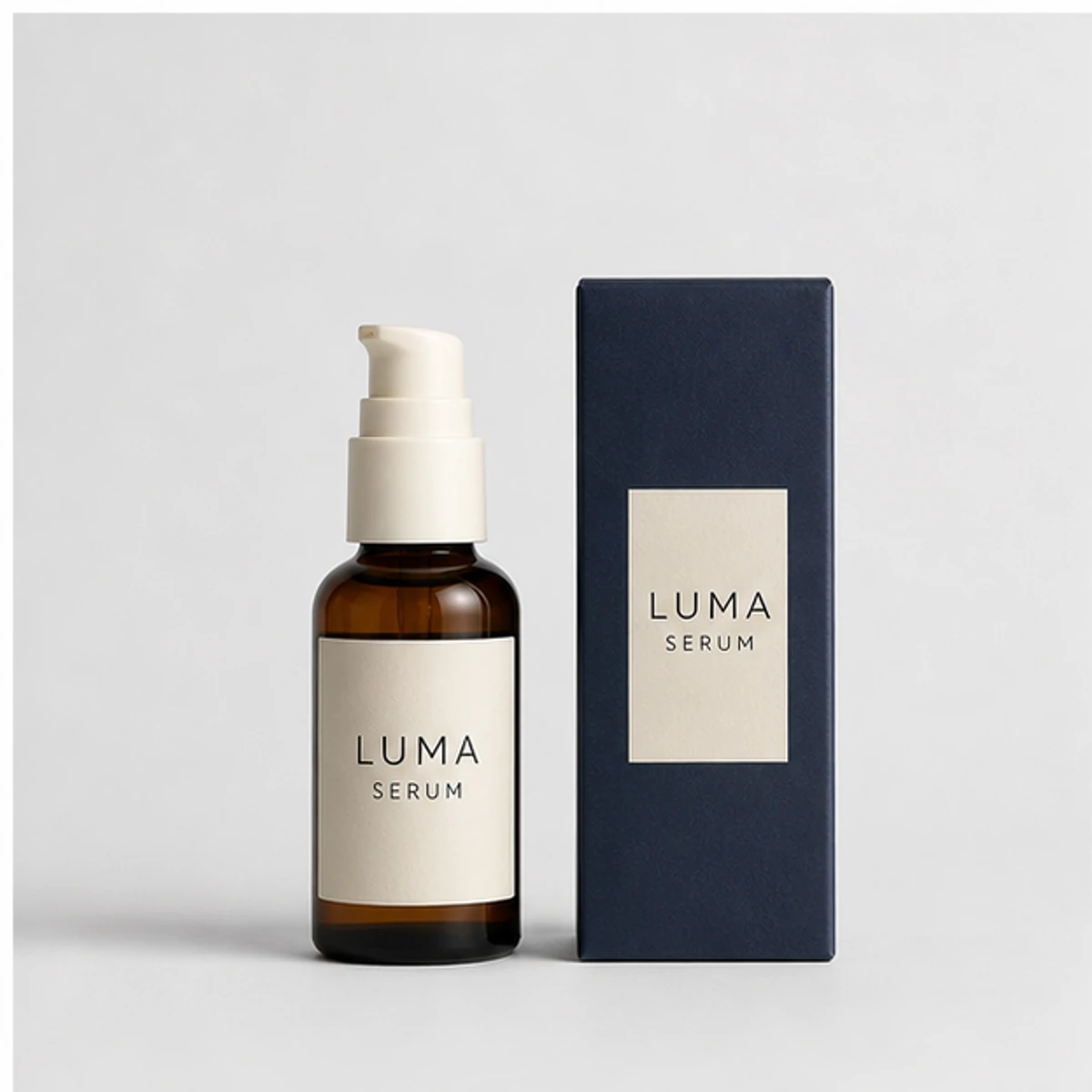
Replace a product photo’s background with a clean studio or believable lifestyle scene. Start with your own source, make one image in Studio, and compare the product with the original before keeping it. This is a generative edit, not pixel-locked product preservation.
Try this workflow in StudioSwipe to compare all 3 cases, including findings and limits.
Generated testGenerated source
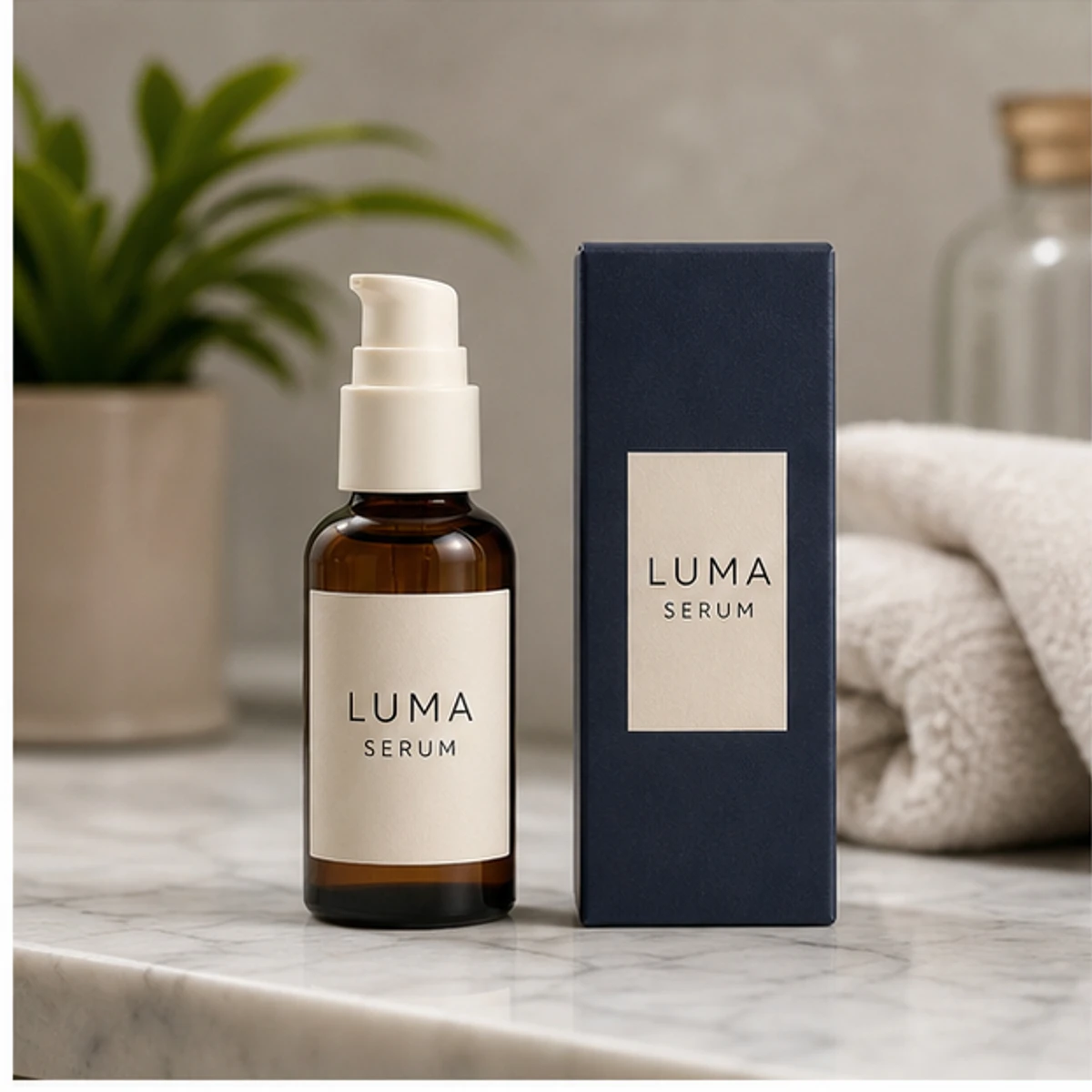 Generated test
Generated source
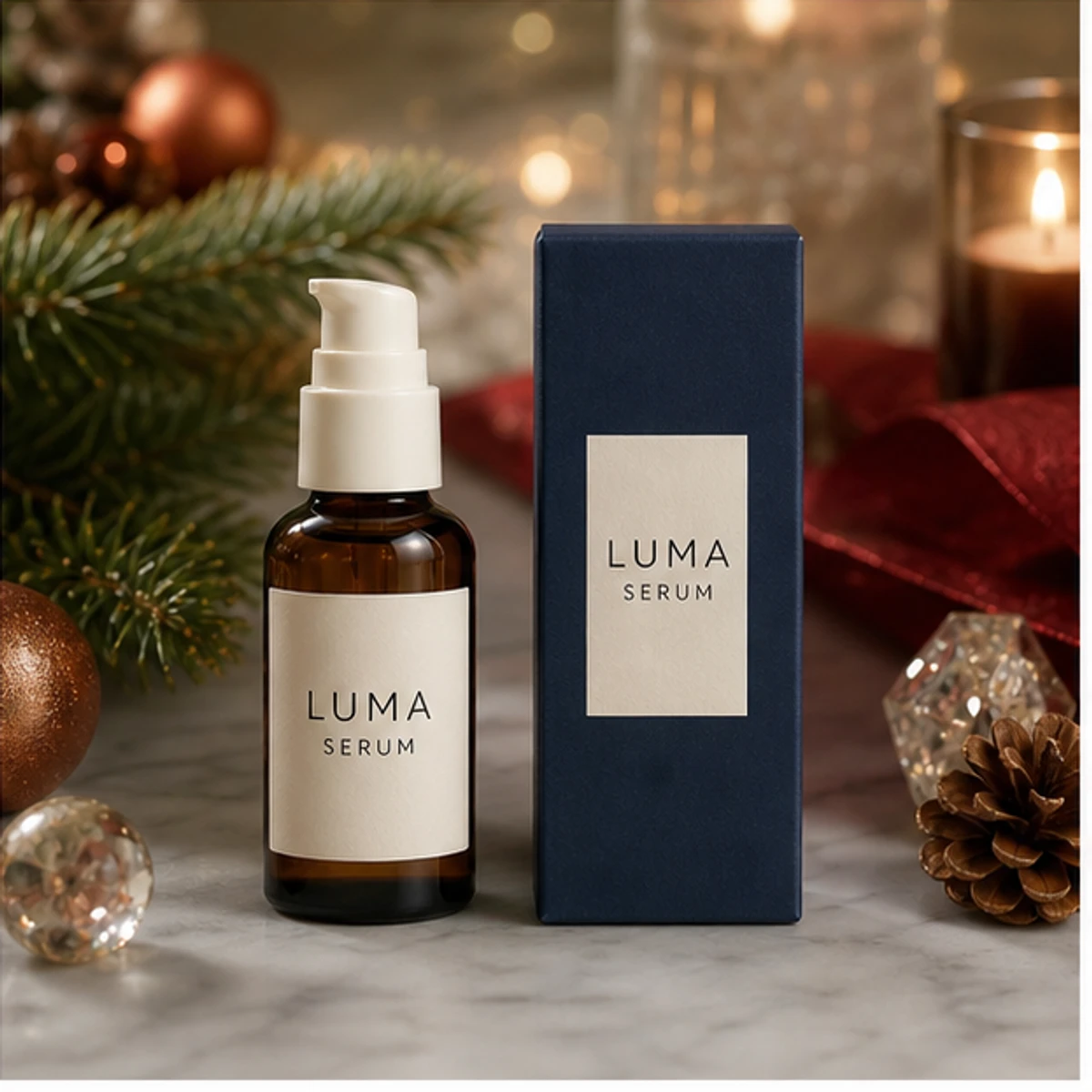 Failure case
Generated source
Replace the sample with your product photo and describe one new background. Opening Studio does not generate an image or spend credits.
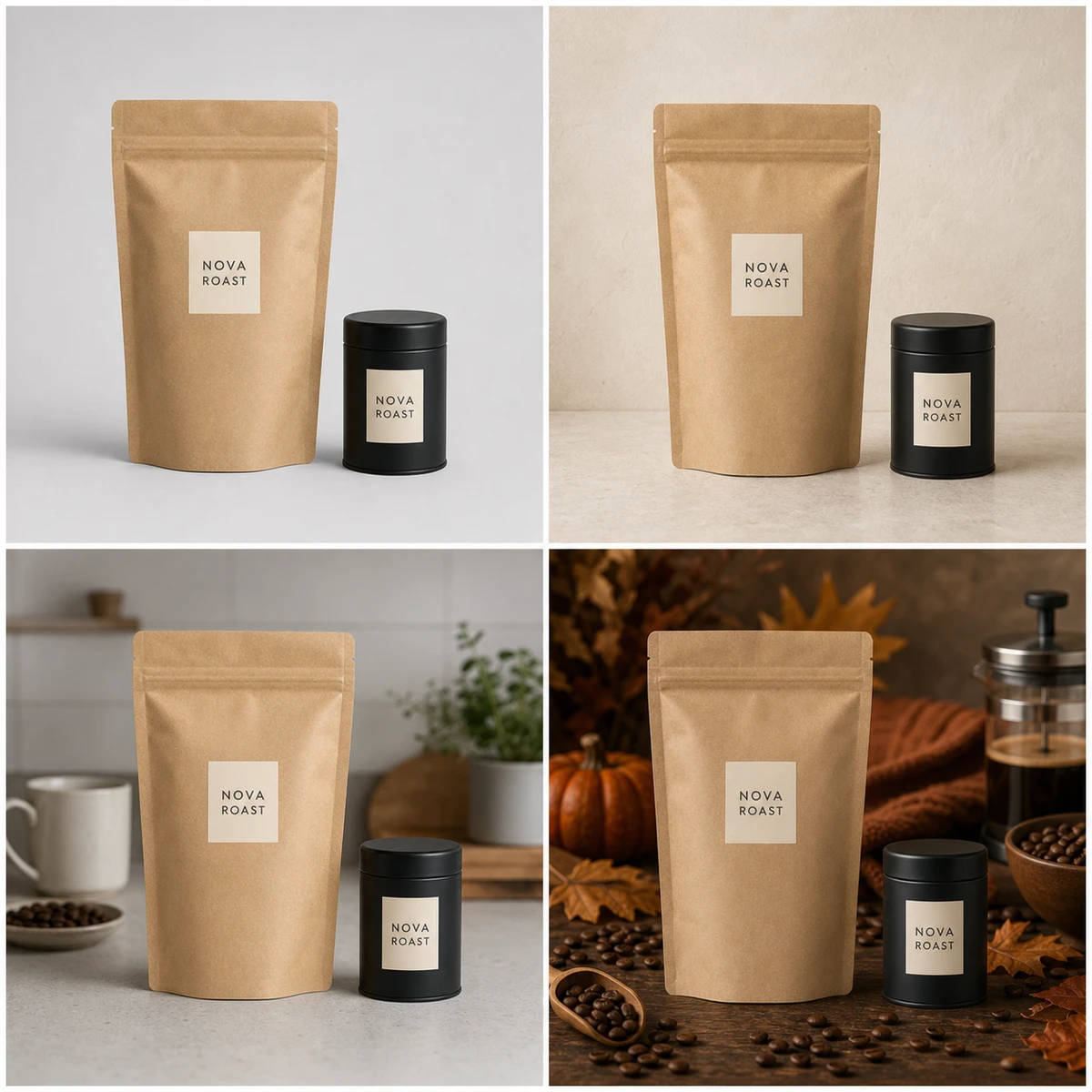
Finding: the pouch seal, front label, and canister proportions remain easy to compare across the displayed studio, lifestyle, and seasonal directions. Limit: this contact sheet is a visual diagnostic, not a pixel-level identity check; inspect each full-resolution output before reuse.
 Diagnostic illustration
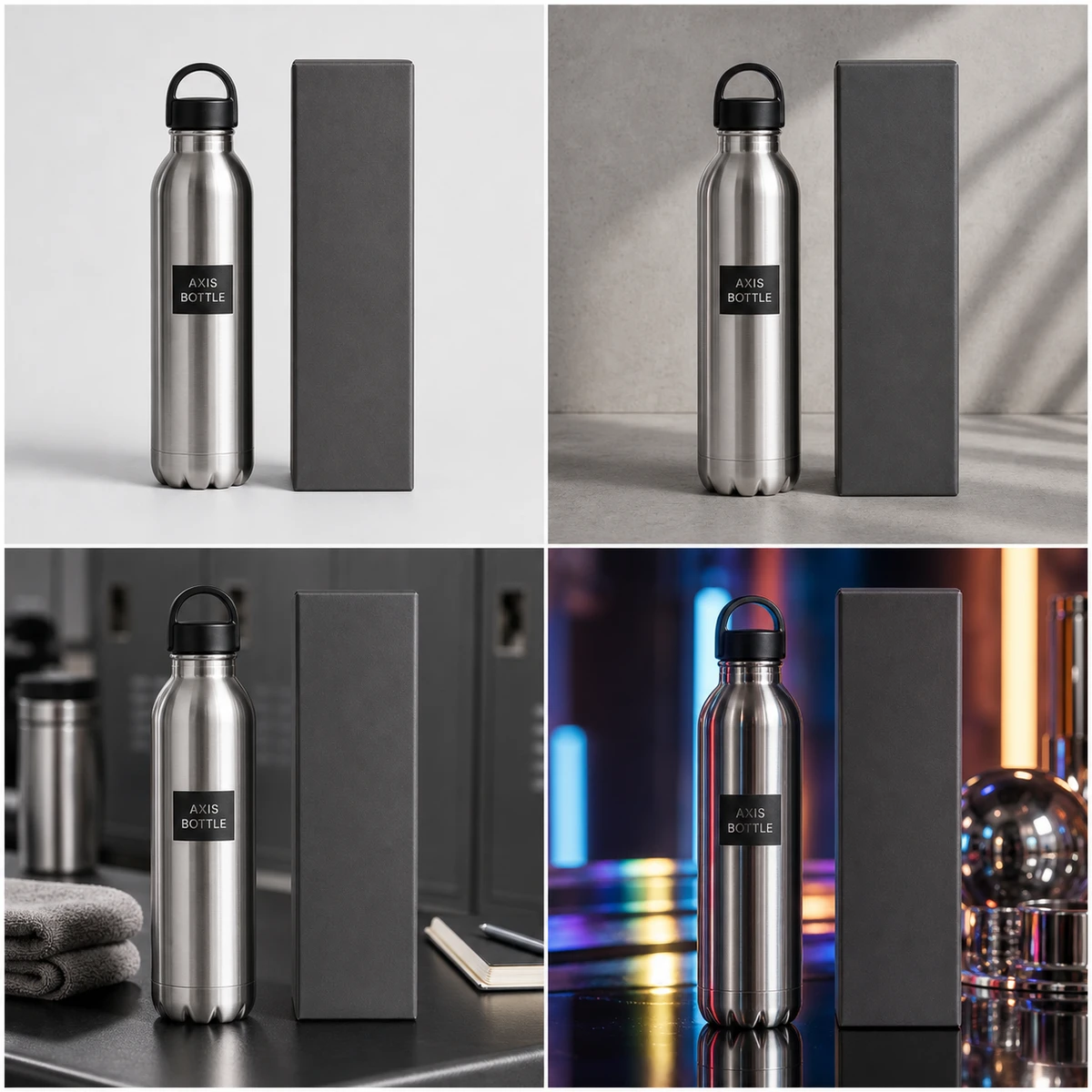
Finding: the bottle silhouette and box stay recognizable across neutral and colored-light scenes. Limit: reflected highlights can hide dents, seam changes, and label drift, so compare the metal edge and cap at full size before approving a variant.
 Diagnostic illustration
Start with one product photo that clearly shows shape, label, material, and scale.
Ask for a studio surface, lifestyle setting, seasonal colorway, or ad scene. Do not combine all ideas at once.
Check edges, logo area, label readability, contact shadow, and props before generating variants.
Use for catalog consistency, product page galleries, collection grids, and retakes where the product should feel clean but not flat.
Use when context helps the shopper understand material, use case, scale, or setting. Keep the product larger than the scene.
Use campaign colors, props, or light cues after the product survives a simple studio pass.
Reject lifestyle, seasonal, prop-heavy, or textured scenes for strict marketplace main-image slots.
The silhouette, cap, pouch edge, box corner, bottle pump, or handle should still match the source image.
Readable labels may soften, but the model should not invent brand names, claims, ingredients, or certifications.
The new background needs believable grounding. A floating product means the lighting or grounding needs revision.
Reject accessories, awards, discount badges, medical claims, or bundled items you did not provide.
Build a product gallery from separate hero, lifestyle, detail and included-items image tasks.
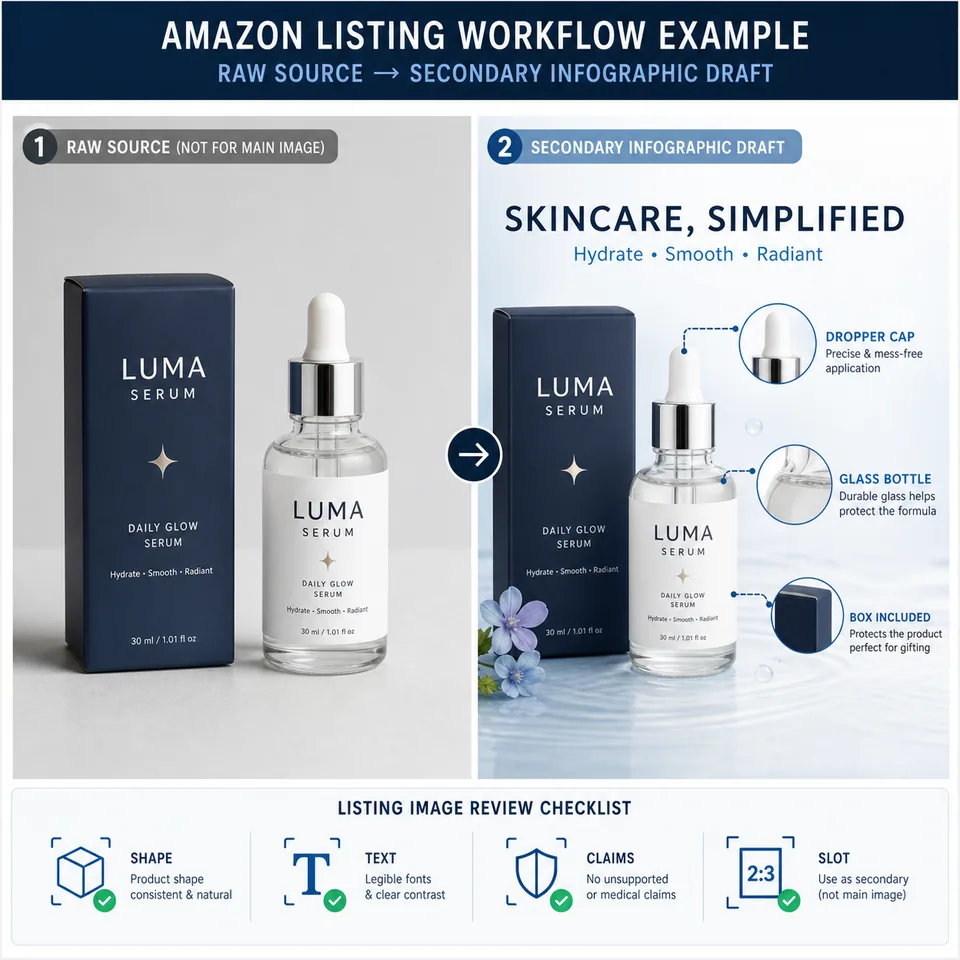
Use when the product visual needs Amazon-specific slot guidance.
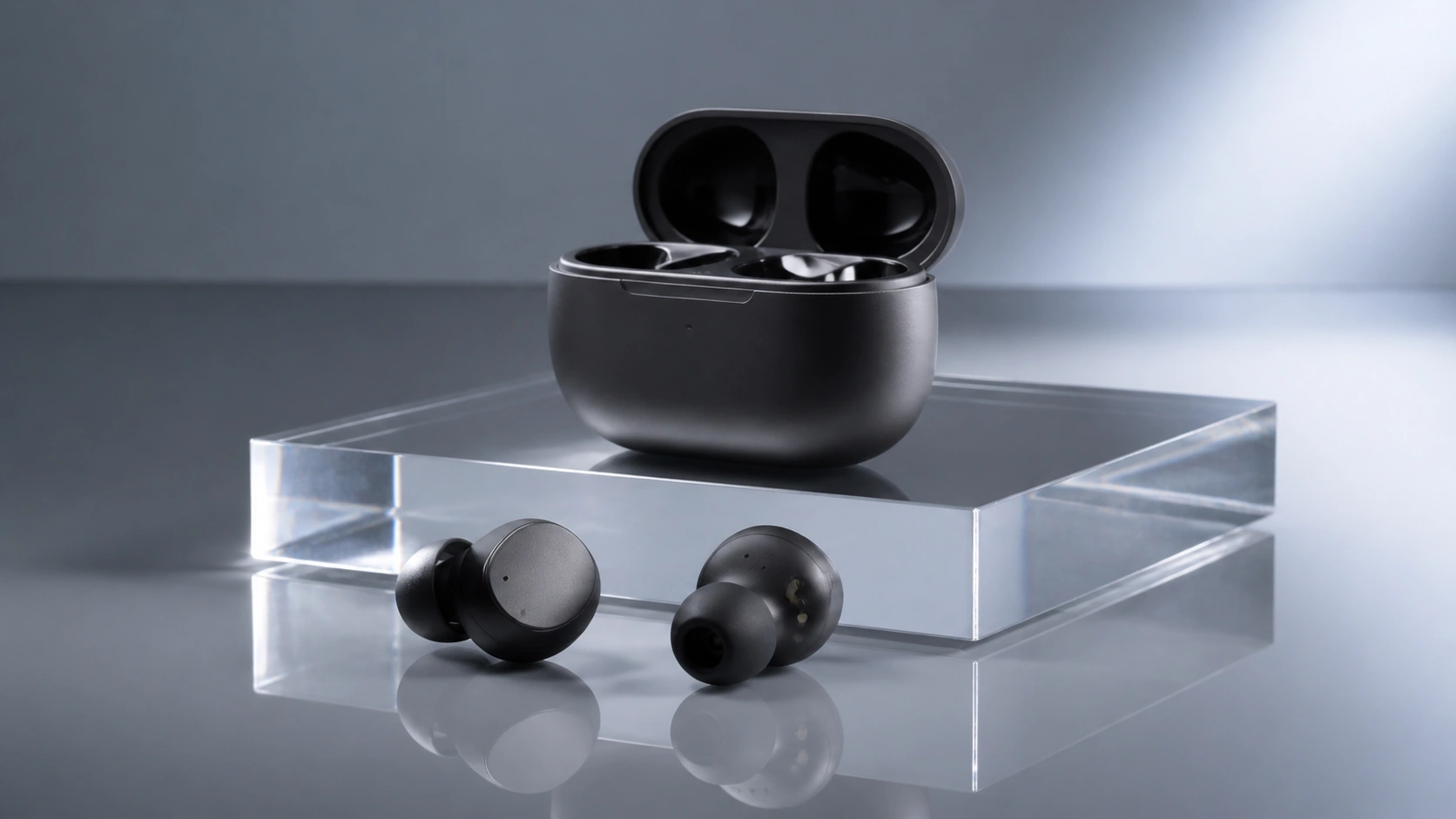
Animate a reviewed product still into a product page loop or paid social product clip.
Remove a background and download a transparent PNG when you need a clean cutout before creating a new scene.
Use this workflow to replace the scene while keeping the product useful for ecommerce and ads.
No. This workflow generates a replacement scene and may alter small product details. Use the separate AI Background Remover for a transparent cutout. For fixed pixels, exact brand typography or legally required labels, finish in an image editor and compare with the original.
Use a clean product photo with the full product visible, clear edges, stable lighting, and enough resolution to read the label. Background replacement is weaker when the product is cropped, blurry, reflective, or covered by hands.
Use a strict white-background workflow for Amazon main-image candidates. This page is better for ecommerce galleries, secondary images, product ads, Shopify catalog refreshes, and lifestyle backgrounds where context is allowed.
Studio opens the background image-to-image preset. It shows the current model, aspect ratio, resolution and credit cost before generation. Replace the sample photo and describe only the background you need; a generative edit can still alter product details.
Check whether the product outline, logo area, readable label text, proportions, and shadows still match the source. Reject the output if it adds unsupported claims, extra products, badges, or confusing props.