Shopify product media troubleshooting for images and videos
Do not spend more generation credits until you know what failed. Use this workflow to separate raw asset problems from Shopify delivery, crop, poster, video, and theme behavior, then regenerate only the image or video that actually needs a new master.
Swipe to compare all 3 cases, including findings and limits.
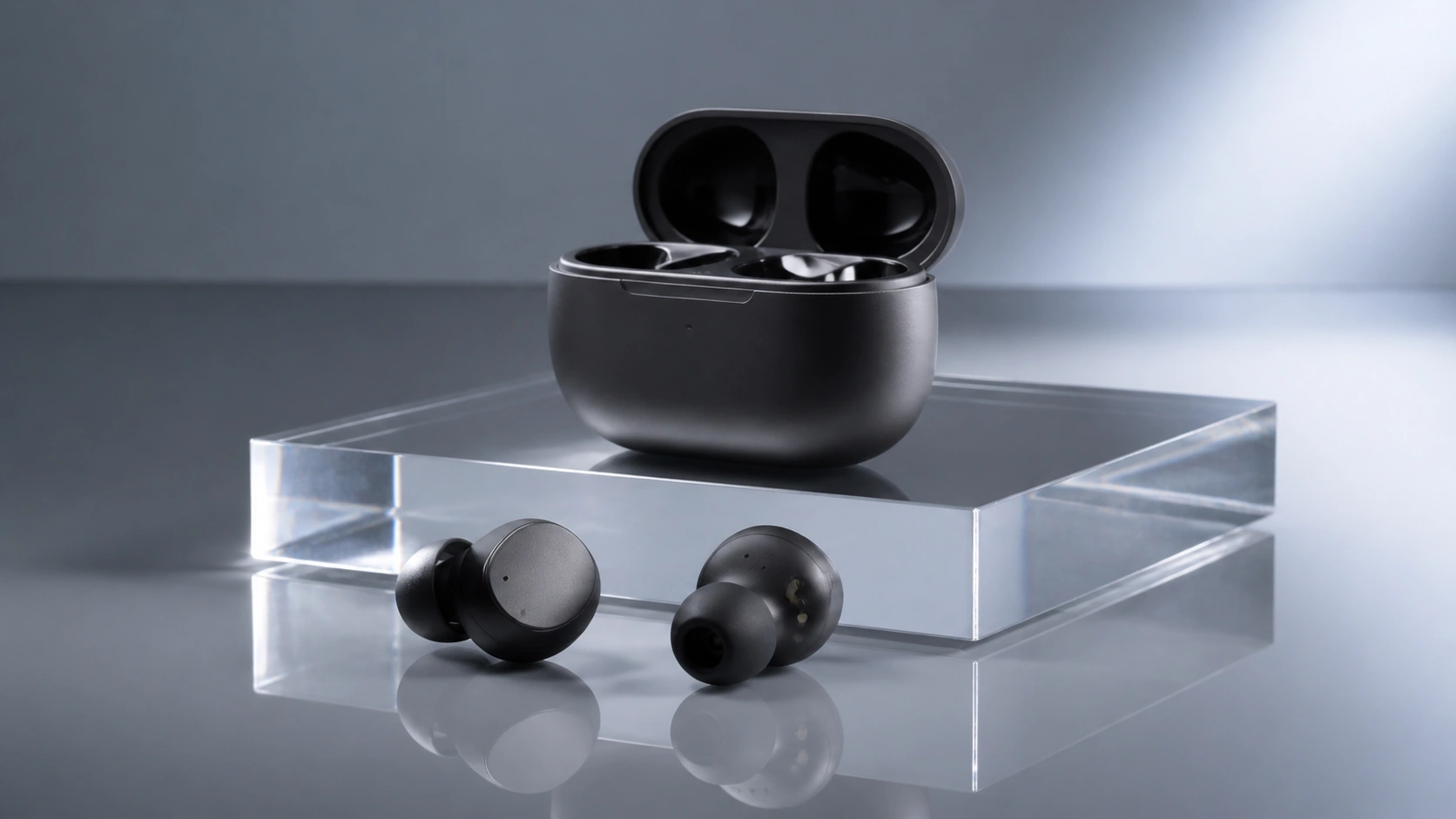
Blurry thumbnail diagnosis
Diagnostic illustration, not a captured Shopify session. Compare the raw image against the storefront thumbnail, then test source sharpness, rendered size, theme crop, and responsive delivery before regenerating.
Diagnostic illustration
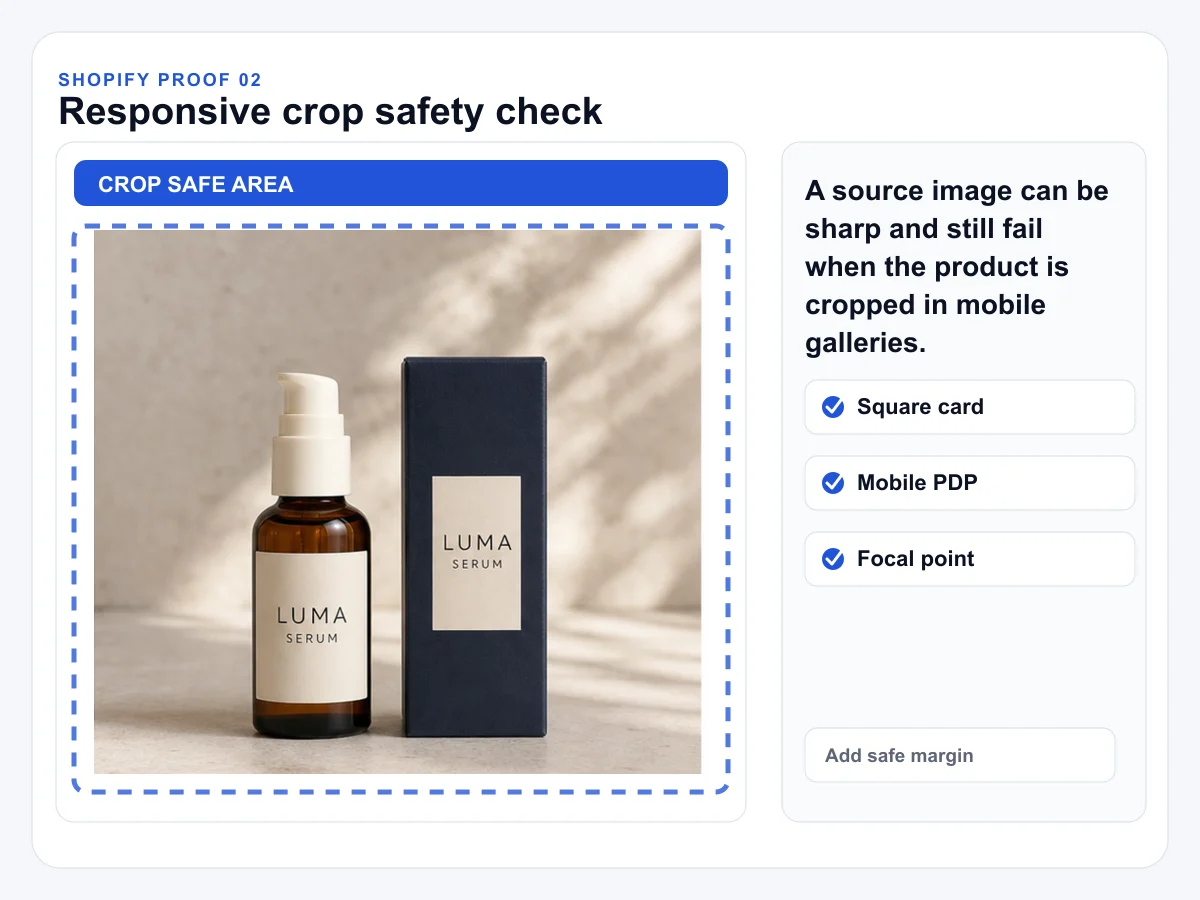
Responsive crop check
Diagnostic illustration, not a theme screenshot. It shows the crop question to test: add safe margin, then compare collection cards, the mobile product page, and focal-point behavior in the actual theme.
Diagnostic illustration
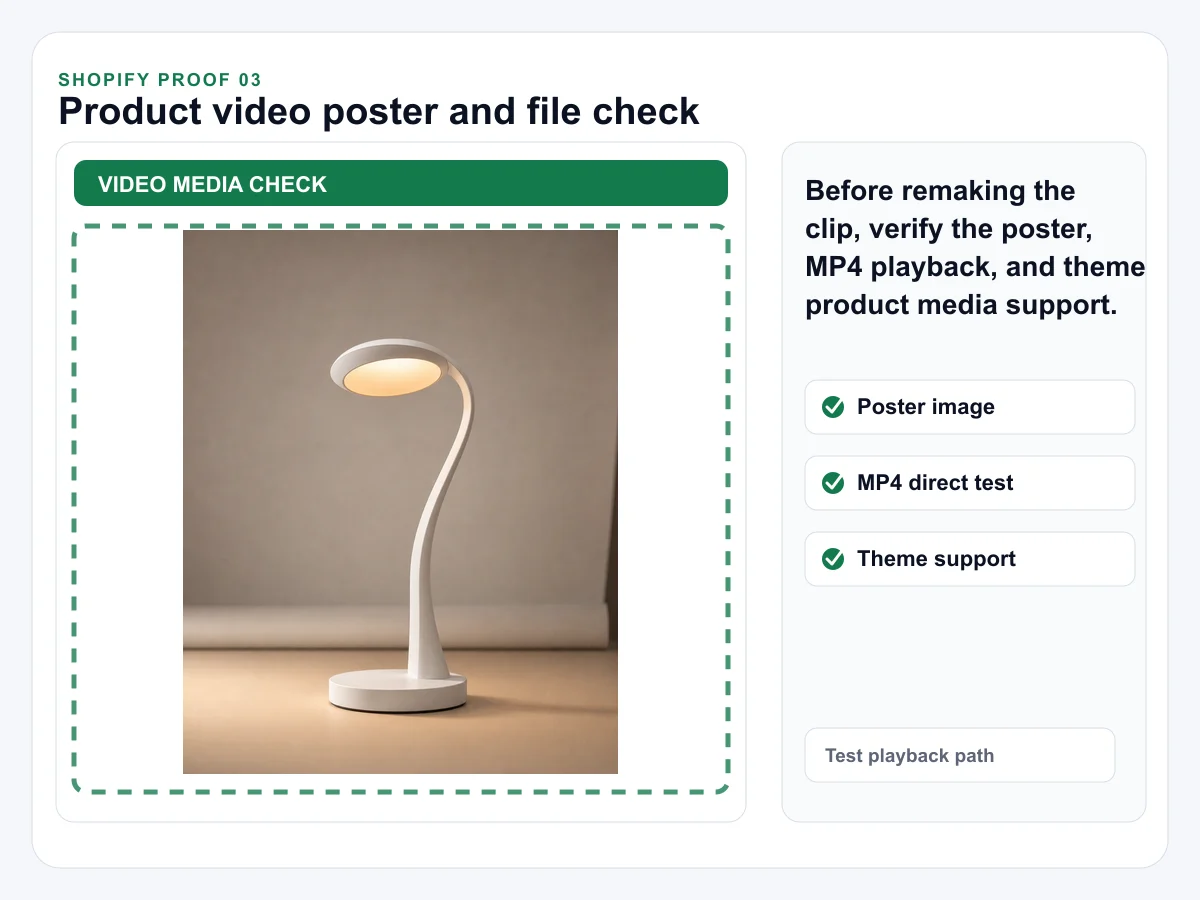
Video poster check
Diagnostic illustration, not a playback capture. Separate the exported file from storefront presentation by checking the MP4, poster image, file weight, theme support, and gallery behavior independently.
Diagnostic illustration
Do not regenerate until you know what failed
1
Separate asset failure from theme failure
Open the raw image or video outside Shopify. If it is already blurry, low-resolution, badly framed, or missing a poster, fix the asset first.
2
Check the slot
Product-card thumbnails, product page galleries, lifestyle images, and video posters need different framing. Test desktop and mobile separately.
3
Regenerate with constraints
Use AuraTuner after the failure is clear. Preserve product shape, label area, color, crop safety, negative space, and the exact SKU being sold.
Common Shopify image and video failure modes
Blurry grid thumbnail
Compare raw image sharpness with the rendered collection card. If the raw file is sharp, inspect theme crop and served image size before regenerating.
Cropped product page image
Add safe margins around the product and test mobile gallery crop behavior. Do not crop the product edge just to fill the frame.
Video not playing
Test the MP4 directly, confirm the poster exists, keep the export conservative, and verify theme product-video support.
Generated asset drift
Reject outputs that change logo placement, SKU shape, package color, material, or quantity.
Identify the failure mode first. A new AI generation only helps when the problem is actually the asset.
Why do Shopify product images look blurry after upload?
Start by separating two layers: the raw asset may already be soft, or the storefront may be serving or cropping it poorly for that slot. Check the raw file first, then inspect the rendered product card or gallery image before regenerating.
Why is my Shopify product video not showing?
Possible causes include file format or weight, a missing poster image, theme gallery code that does not render product video media, autoplay restrictions, or a blocked embed. Confirm the current Shopify media requirements and test the active theme before regenerating the clip.
Can AuraTuner fix a Shopify theme problem?
AuraTuner can help create cleaner product images, background variants, and product videos, but it does not edit your Shopify theme. If the raw asset is fine and the storefront render is wrong, duplicate the theme and test theme or CDN behavior separately.
What should I regenerate first?
Regenerate the asset only after you know the failure mode. If the image is cropped wrong, change framing. If the video will not play, test file format, poster, and theme support before spending credits on a new clip.
What evidence should I collect before using Studio?
Save the raw media file, a storefront screenshot, the product slot where it fails, the device or browser, and whether the problem appears in collection cards, product galleries, video posters, or embedded media.

 Diagnostic illustration