
AI FASHION PHOTOSHOOT FOR ECOMMERCE
Turn clothing photos into on-model product images.
Use a clothing photo and a model photo to create one on-model image. Choose a new pose or scene when you need another look. Each task runs separately in Studio.
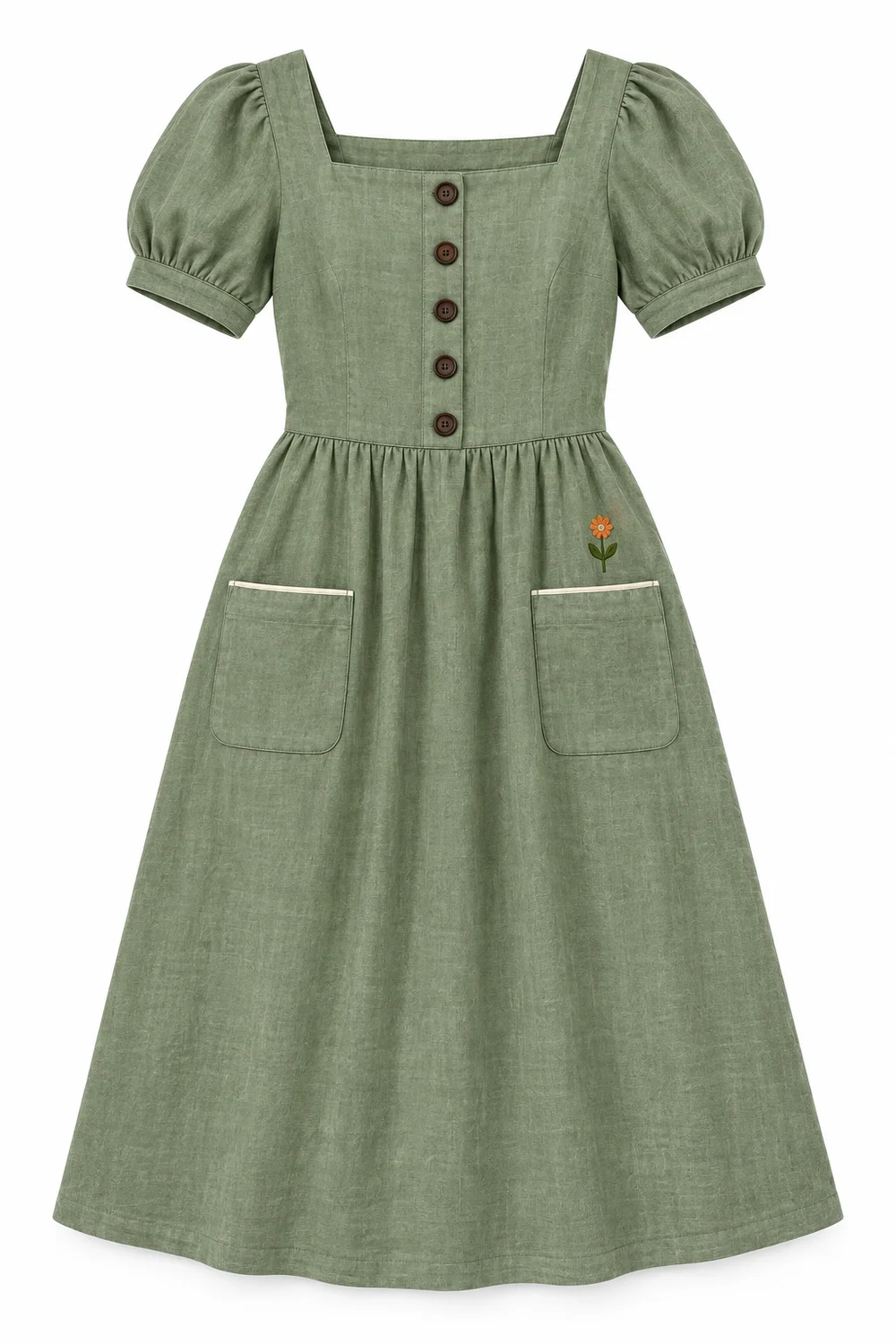 Clothing photo
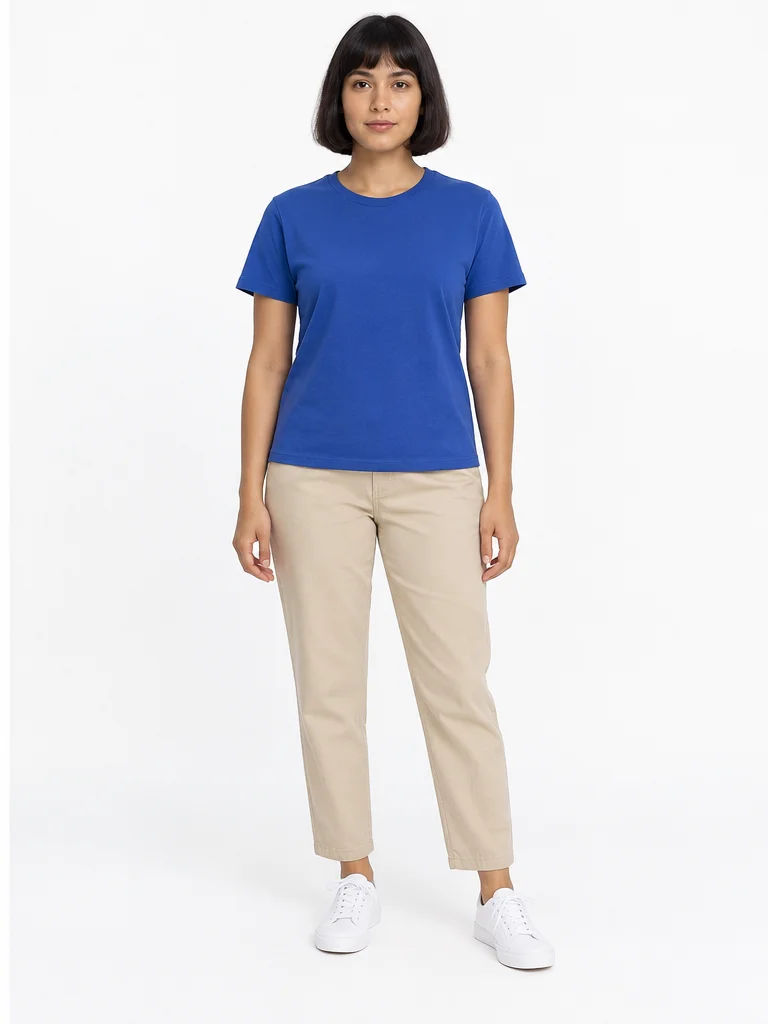 Model photo
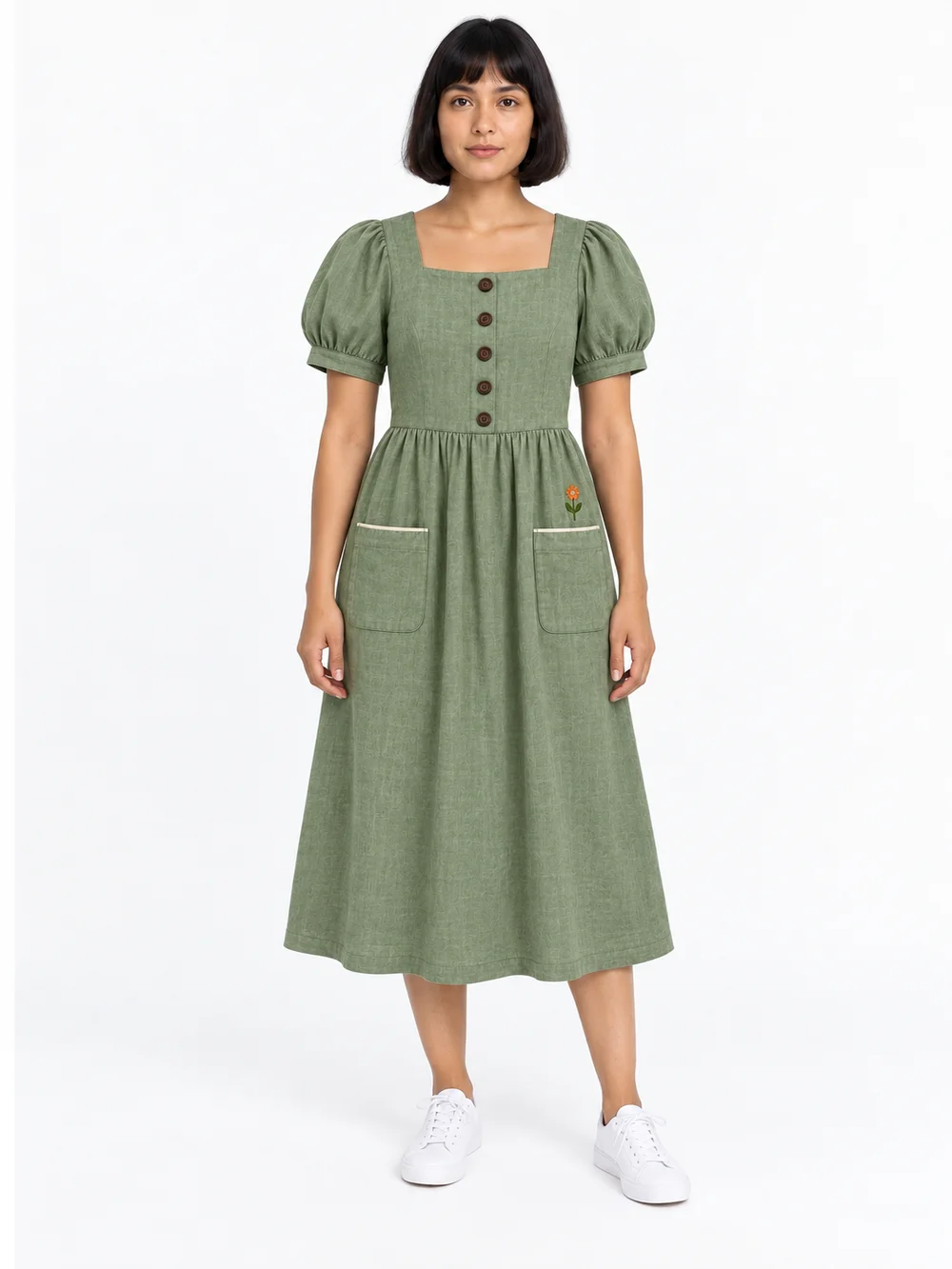 One on-model photo
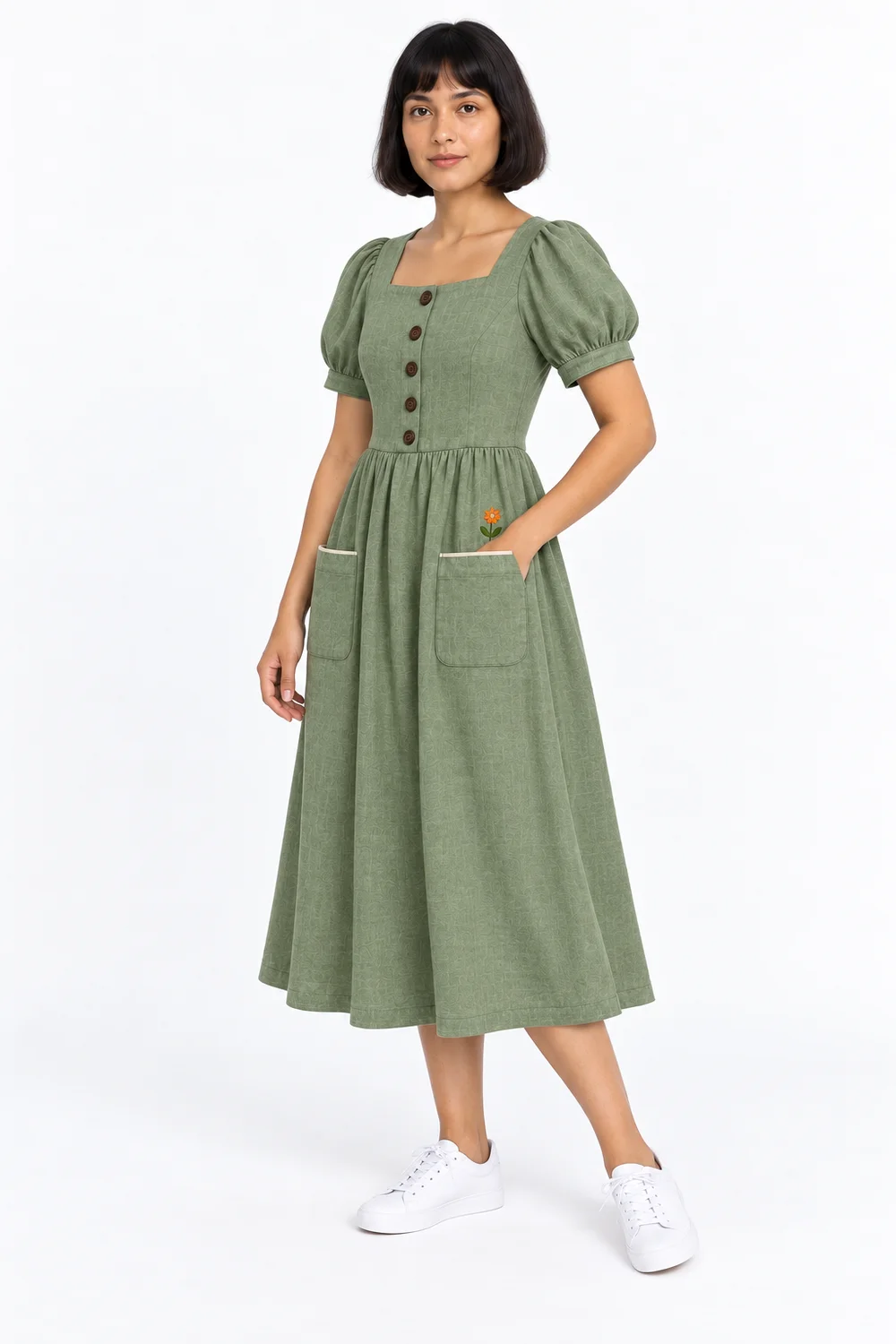 New pose
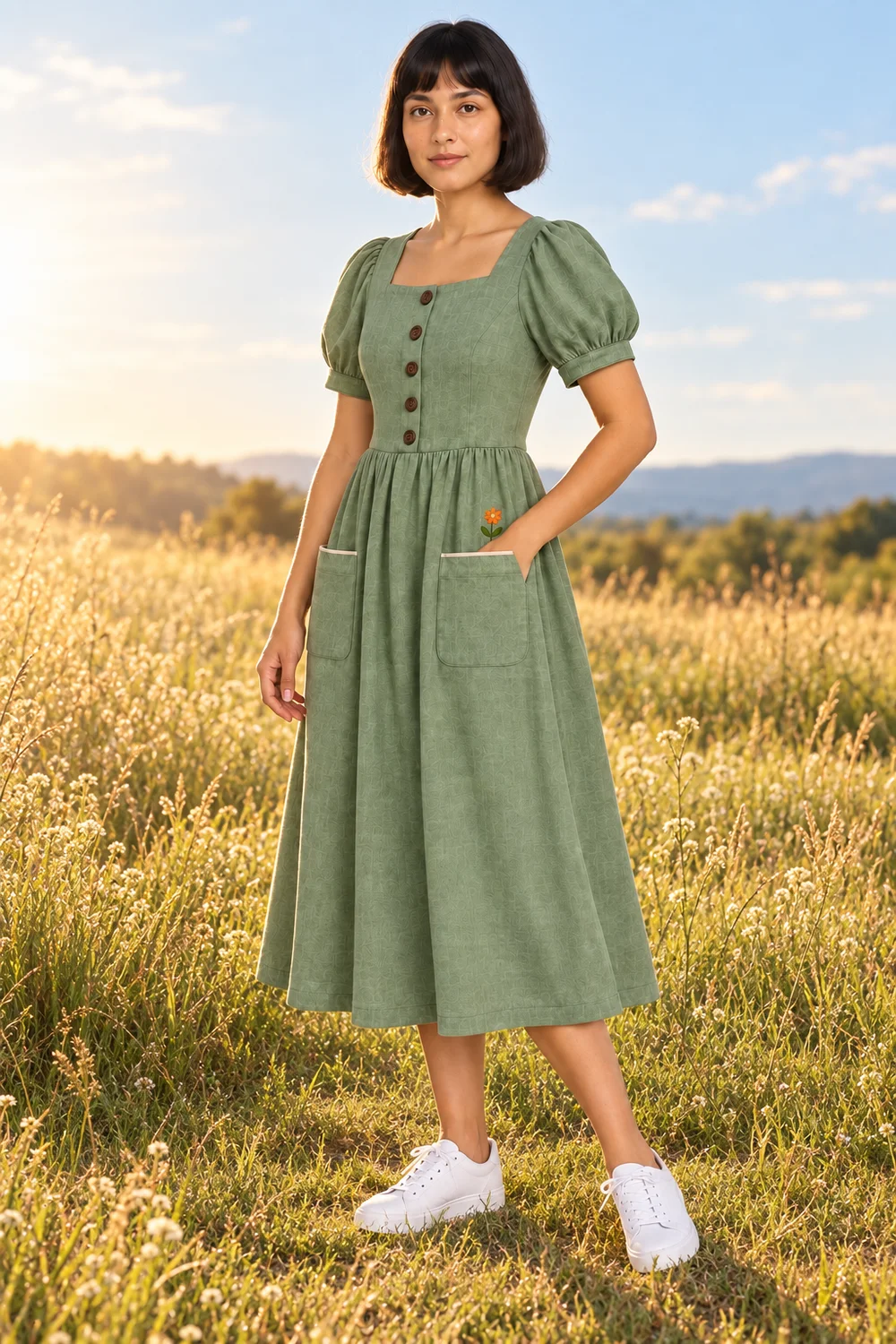 Campaign scene
Model photos for product pages
New poses for the same garment
Scene variations for your collection
ONE GARMENT. MORE WAYS TO SHOW IT.
Make an on-model photo, then choose a pose or scene.
Show your clothing on a model.
Pair a clothing photo with a model photo to create your first on-model image. Use it for your product gallery or as the starting point for more looks.
Make one like thisStart with a clear front view of the whole garment and a full-body model photo.
Give your product gallery more variety.
Turn your model photo into another pose without arranging another shoot. Describe the stance and camera angle you want, then choose the image that shows the garment best.
Make one like thisA hand can hide a pocket or embroidery. Keep a clear front view in your product gallery too.
Take the same look beyond the studio.
Place your model in a setting that fits your collection. Describe the location and lighting to make a lookbook image, seasonal campaign, or social post.
Make one like thisDescribe the setting, not a new outfit. Use the model photo you want to keep.
COLLECTION INSPIRATION
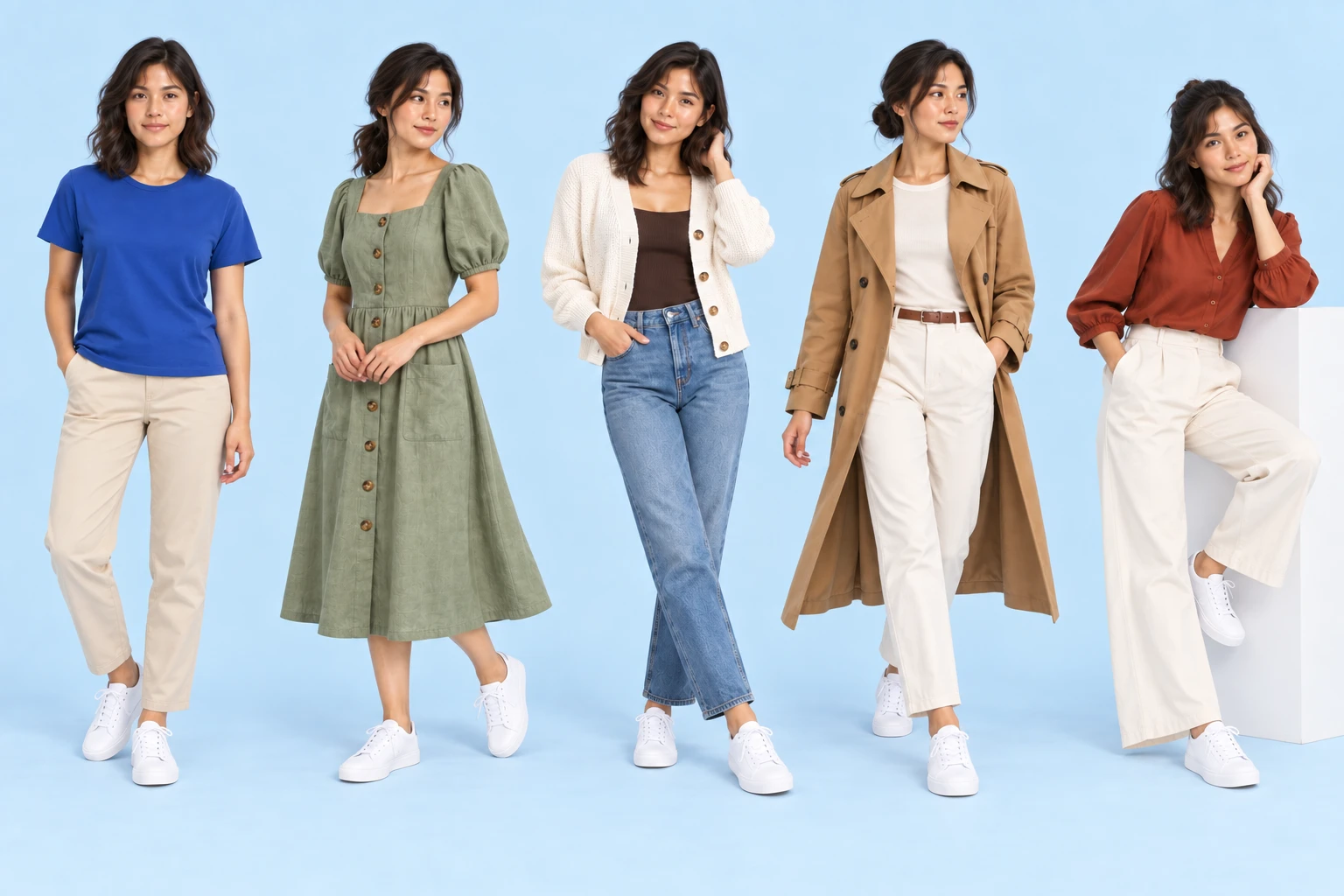
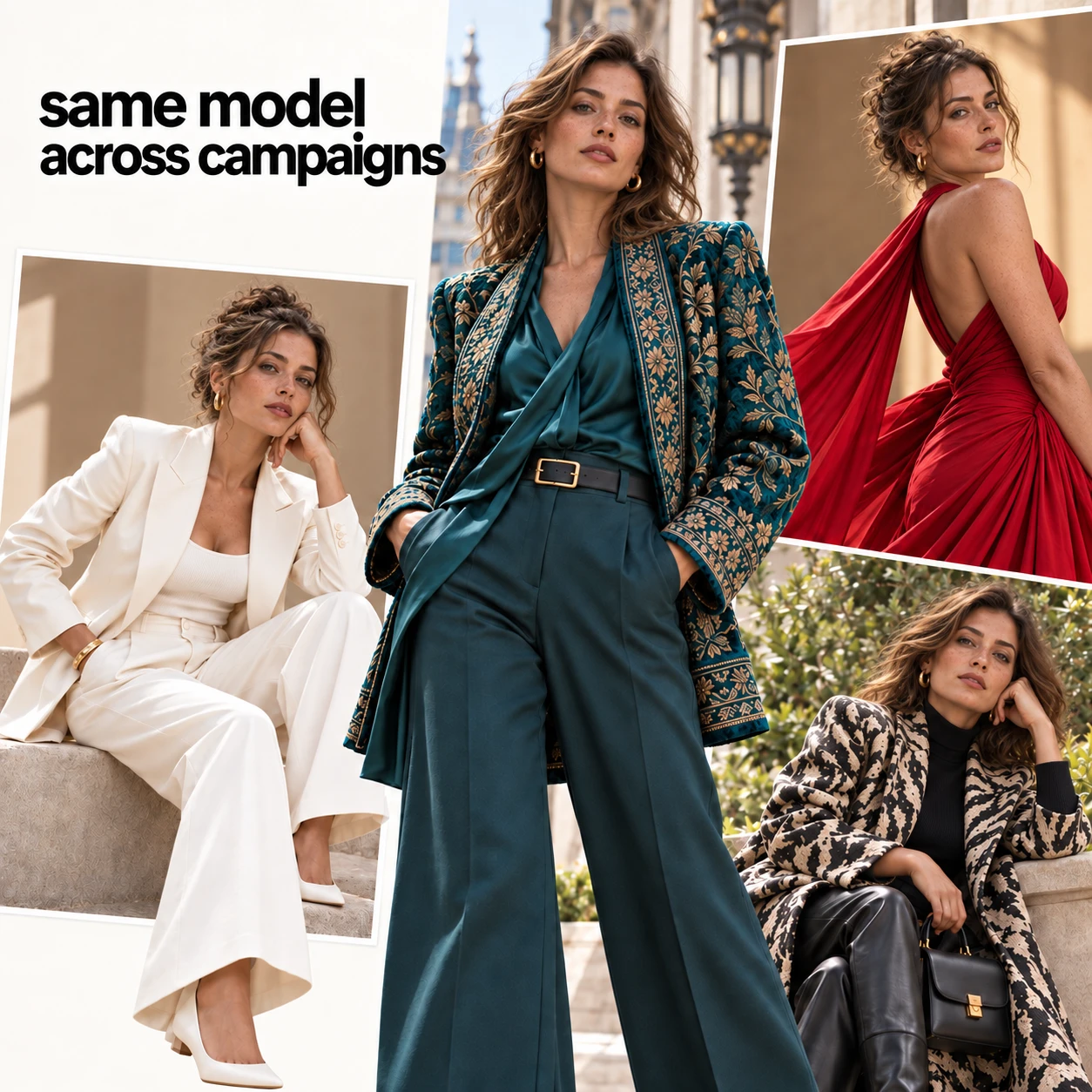
One model, across campaigns.
Explore different outfits, poses and settings around a model reference. These are cross-collection creative examples, not additional views of the single dress shown above.
Before your first fashion photoshoot
What photos do I need to start?
For an on-model image, use two separate photos: your clothing product photo and a full-body model photo you have permission to use. A clear flat lay or hanger shot can be your garment reference. If you already have a model wearing the outfit, you can start with a pose or scene task instead.
Can I keep the same model and outfit?
Use the previous result as the next reference image and describe only the change you want. The examples show one model and sage-green dress across poses and a meadow scene. AI can still change small details, so compare the face, buttons, pockets, print, and fit with your originals.
Does one click generate the whole set?
Each task runs separately in the Studio on this page. The example buttons load a starting preset with sample photos you can replace. Adjust the prompt, check the credit cost, and generate that result. Download a result and upload it for another task when needed; you can skip tasks or stop at one photo.
Can these images show customers the exact fit?
These are AI-generated fashion visuals, not size or fit measurements. Use them for creative presentation and compare the garment details with your real product. Keep real product photos and sizing information available to customers.
What does it cost to generate?
Each image or video generation uses credits. Studio shows the selected model, settings and cost before you generate. Opening a preset does not run a generation. Choose the image task you need first; the optional photo-to-video task is a separate generation.
OPTIONAL NEXT STEP
Animate a finished model photo.
Already have an outfit or campaign photo? Start here directly. Video is a separate task; no clothing transfer, pose change or scene generation is required.
Bring your campaign photo to life.
Turn a finished model or campaign photo into a short fashion clip. You can start here without using the other tasks. This 8-second example adds a gentle breeze and a subtle camera move.
Make one like thisStart with subtle motion. Check the face and clothing throughout the clip before sharing.
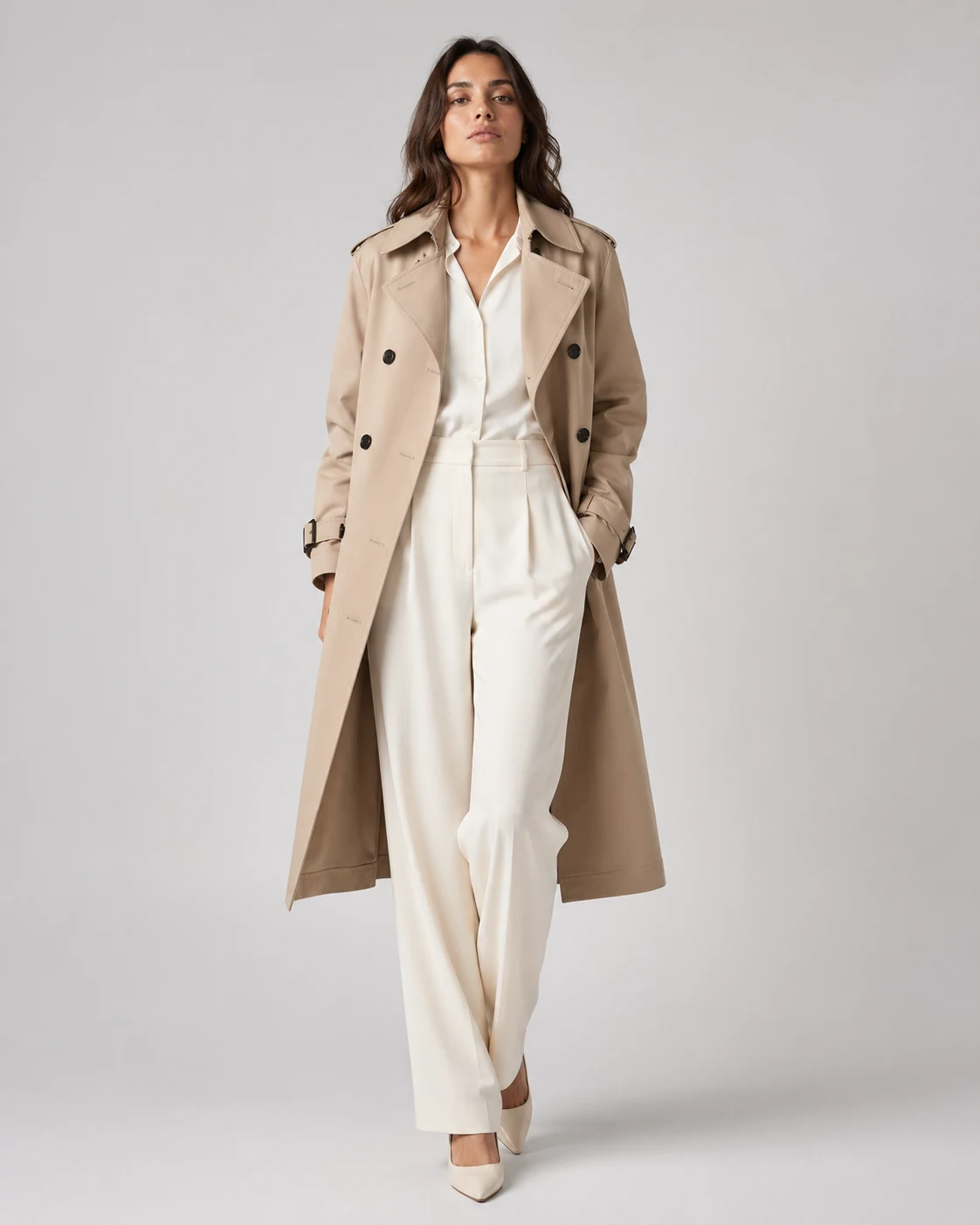
Start with one finished outfit photo.
Open the photo-to-video preset, replace the sample with your own outfit or model photo, and choose a restrained camera move. Use the resulting clip for a product page or social post after checking it against the source.
Make one like thisUse the example as a starting point, then inspect lapels, trouser shape, hands and crop across the full clip. Close-up fabric shots can drift toward portrait framing; reject a clip that changes what the photo is meant to show.